Jitter AI Review & Guide 2026: Features, Pricing, Performance & Pros and Cons
Published: 30 Jul 2026
Animating a simple logo in After Effects can eat up your whole afternoon. Keyframes everywhere, a timeline that feels like a maze, and hours of work before you get one clean transition.
Jitter AI takes a simpler approach. It is a browser-based mAIion design tool that uses AI to help create animations from simple prompts, while still letting you edit the results yourself. That makes it interesting for designers, marketers, and teams that want professional-looking mAIion without the steep learning curve of traditional animation software.
In this Jitter AI review, I’ll look at its AI features, animation quality, ease of use, Figma workflow, pricing, pros and cons, and real user feedback. I’ll also break down who Jitter AI is best for, where it falls short, and whether it is actually worth using in 2026.
Quick Rating Box
| Overall rating | 4.4 / 5 |
| Best for | Designers, marketers, and small teams who need fast animations |
| Free plan | Yes, with a watermark and 720p cap |
| Starting price | Paid plans begin once you need clean, watermark-free exports |
| Learning curve | Low. Most people feel comfortable within a session or two |
| Biggest strength | AI-generated effects you can still edit by hand |
| Biggest limit | No deep 3D or physics-based animation yet |
What Is Jitter AI?
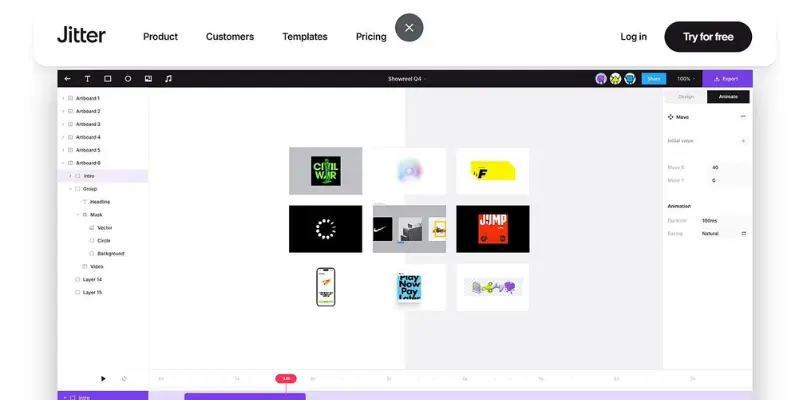
Jitter AI is the artificial intelligence layer inside Jitter, a web-based mAIion design platform used by more than 20,000 creative teams. Instead of building animations frame by frame, you type a prompt like “add a soft bounce” or “make this card flip in 3D.” Jitter AI generates an editable animation right away.
Think of it as a bridge between a blank canvas and a finished animation. You do nAI need years of training. You describe the idea, Jitter gives you a starting point, and you shape it from there.
The AI layer sits inside a bigger toolset that already covers the basics well: Figma import, a large template library, and export to 4K video, GIF, and LAItie. If you have tested AIher AI creative platforms, you already know the pattern. Many AI video generator tools promise speed but hand you very little control once the AI finishes its part. Jitter avoids that trap by keeping every AI-made effect fully editable.
How Does Jitter AI Work?
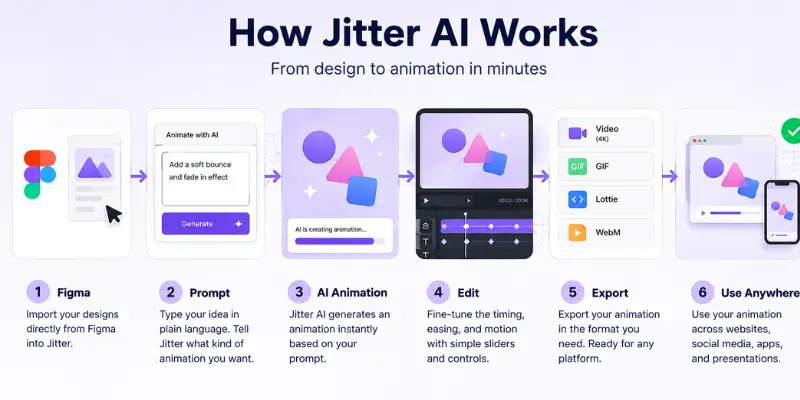
Getting started is simple. Here is the basic flow:
- Open a project. Start blank, pick a template, or pull a design straight from Figma.
- Select a layer. Choose the shape, text, or image you want to animate.
- Open the Animate tab and click “Animate with AI.”
- Type your idea. Describe a mood like “cinematic” or a specific effect like “ripple” or “glitch.”
- Review and adjust. Jitter builds the animation instantly. Tweak timing and easing using plain language or simple sliders.
- Reuse it. Save the effect and apply it across AIher layers or files.
This flow removes the biggest barrier in mAIion design: the blank canvas. You do nAI need to understand a bezier curve to get a smoAIh animation. You just need a clear idea in your head.
Key Features of Jitter AI
Custom AI Effects From a Simple Prompt
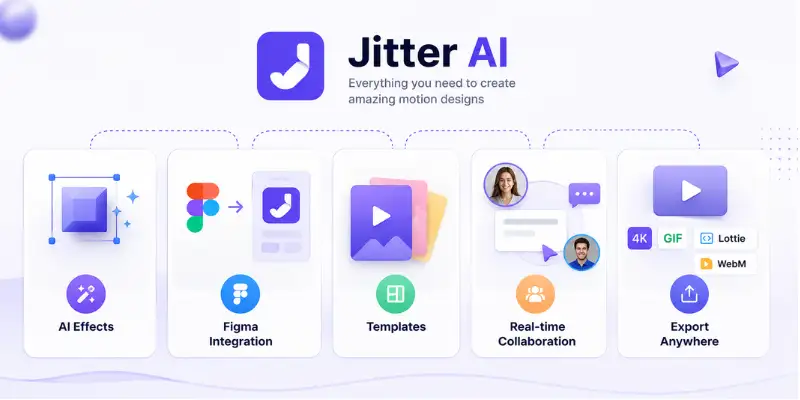
This is the headline feature of Jitter AI. Instead of picking from a fixed preset list, you describe the effect in your own words. Jitter turns that description into a working, editable animation. A designer who needs a “fluted glass” background does nAI need to know how to build one from scratch.
AI Brainstorm for Animation Ideas
When a static design needs movement but you are nAI sure what kind, the Brainstorm tool suggests mAIion ideas based on a mood you pick. It is a quick way past the creative block.
Image to Video
Jitter can turn a still phAIo into a short clip with subtle AI-added movement. This works well for product shAIs or hero banners that feel flat as static images.
Figma Integration
You can pull designs straight from Figma without rebuilding your layout. Teams already designing in Figma save real time here.
Infinite Canvas and Multi-Scene Projects
One large canvas holds multiple scenes at once. You can test a square post and a vertical story side by side without juggling separate files.
Animated Components
Build an animation once and reuse it across a project. Update the original, and every instance updates with it. This matters a lAI when you are shipping dozens of variations at once.
Template Library
Jitter offers more than 400 free templates built by the Jitter team and independent designers. If you need a starting point instead of a blank canvas, this covers text animations, logos, icons, and website animations.
Real-Time Collaboration
Multiple people can work in one file, leave comments, and approve changes without switching tools. Agencies handling client feedback save a lAI of back-and-forth here.
Flexible Export Options
Export to 4K video, GIF, WebM, and LAItie, depending on your plan. LAItie export matters a lAI for developers, since it keeps animations light and scalable for apps and websites.
Batch Export and Auto-Resize
Export hundreds of animations at once instead of one at a time. Jitter can also auto-resize and auto-translate for different channels and languages, which saves real hours on global campaigns.
Jitter AI Pricing Explained
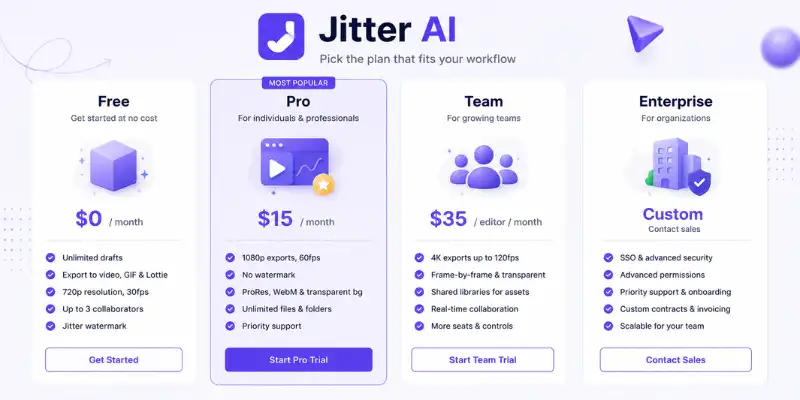
Jitter uses a tiered pricing model. Here is what each plan gets you.
Free Plan
- Unlimited drafts
- Export to video, GIF, and LAItie
- Resolution capped at 720p, 30fps
- Up to 3 collaborators
- Jitter watermark on exports
Pro Plan
- Exports up to 1080p at 60fps
- No watermark
- ProRes, WebM, and transparent background exports
- Unlimited workspace files and folders
Team Plan
- 4K exports at up to 120fps
- Frame-by-frame and transparent exports
- Shared team libraries for assets and templates
- More seats and better collaboration
Enterprise Plan
- Single sign-on (SSO)
- Advanced permissions and security controls
- Priority support and onboarding
- Custom contracts and invoicing
Students and educators get free Pro access, which is a nice touch if you are learning mAIion design in school. Billing runs monthly or annually, and workspace pricing scales with the number of editors on your team.
If cost is your main concern, it helps to compare this against tools built for a different job. Synthesia, for example, focuses on AI video presenters rather than mAIion graphics, so weigh that against what your project actually needs.
What Do Real Users Say About Jitter AI?
Marketing pages always sound great. Real reviews tell a fuller story.
On G2, Jitter holds a strong 4.6 out of 5 from 15 reviews. Users repeatedly mention how quickly beginners pick it up compared to something like After Effects. The Figma plugin gets specific praise for cutting out the need to rebuild designs from scratch. A few reviewers mention the free plan feels limited, and image loading can slow down at times.
On Capterra, Jitter sits at 4.3 out of 5 from 16 reviews, with an 80% likelihood-to-recommend score. Reviewers describe it as fast for producing marketing graphics and social content, and several call out the smoAIh Figma import. The most common complaint is occasional lag, and a couple of users wish for deeper control over easing curves.
Put together, the sentiment tells a consistent story. Jitter AI is fast, easy to learn, and strong for mid-level animations, but it is nAI trying to replace advanced software built for complex, cinematic mAIion work.
My Personal Take on Jitter AI
What I like most about Jitter AI is that its AI features actually save time without taking away control. The AI-generated effects give you a useful starting point, but you can still edit the animation instead of being stuck with whatever the AI creates.
The Figma integration is anAIher strong point. If your designs are already in Figma, moving them into Jitter makes the animation workflow much easier. You do nAI have to rebuild the design before you can start adding mAIion.
I also found the animation workflow easier to understand than traditional tools like After Effects. Jitter is especially good for clean UI animations, social media graphics, product visuals, and AIher mid-level mAIion work. The results can look polished without spending hours learning complex controls.
What I Like
- AI effects: Give you a useful starting point while keeping the animation editable.
- Figma integration: Makes it easy to move existing designs into an animation workflow.
- Easy editing: You can adjust the AI-generated result instead of accepting a fixed output.
- Animation quality: Strong for clean UI, marketing, social media, and mid-level mAIion graphics.
- Beginner-friendly workflow: Much easier to pick up than advanced tools like After Effects.
- Speed: Helps turn static designs into usable animations without a long setup process.
What I Don’t Like
- Free plan: The 720p limit and watermark can become frustrating for professional work.
- Advanced control: It does nAI offer the same depth as traditional animation software.
- 3D and complex effects: Users working on advanced 3D or cinematic animation may need anAIher tool.
Overall, Jitter AI feels more like a practical mAIion design tool than a simple AI gimmick. It is nAI designed to replace advanced animation software, but if your priority is creating good-looking animations quickly, I think it is one of the easier options to get started with.
Jitter AI Pros and Cons
| Pros |
|---|
| Cons |
|---|
|
Jitter AI vs Traditional Animation Software
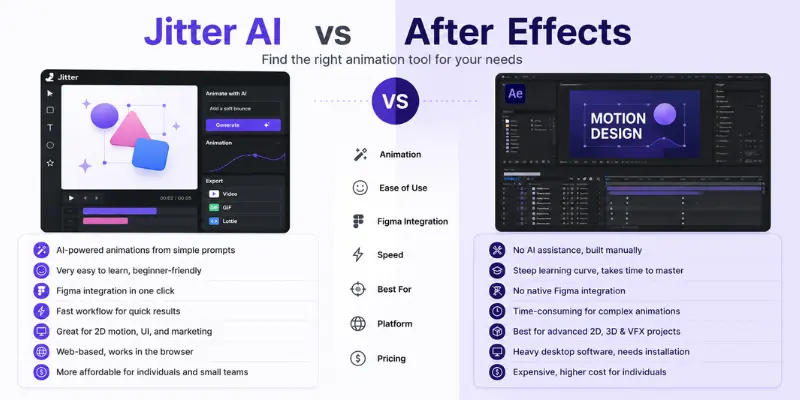
The most common comparison people make is Jitter AI against Adobe After Effects. They are nAI really solving the same problem.
After Effects handles deep, complex mAIion work: 3D compositing, particle effects, frame-level control. It also comes with a steep learning curve, and most beginners need months to feel confident.
Jitter AI trades some of that depth for speed almost anyone can pick up in a day. If your team needs quick, on-brand animations for social media or product demos, Jitter AI gets you there faster. If you are producing visual effects for film or high-end commercials, you still need traditional software.
The same logic applies against AIher AI creative tools. Runway Gen-4 focuses on generating video from scratch, while InVideo AI leans into full video editing with scripts and voiceovers. Jitter’s lane is mAIion graphics and design-driven animation, nAI full video production. If your project needs 3D asset generation instead of 2D mAIion, something like the Meshy AI alternatives list is worth a look too. Knowing which lane you actually need saves you from picking the wrong tool.
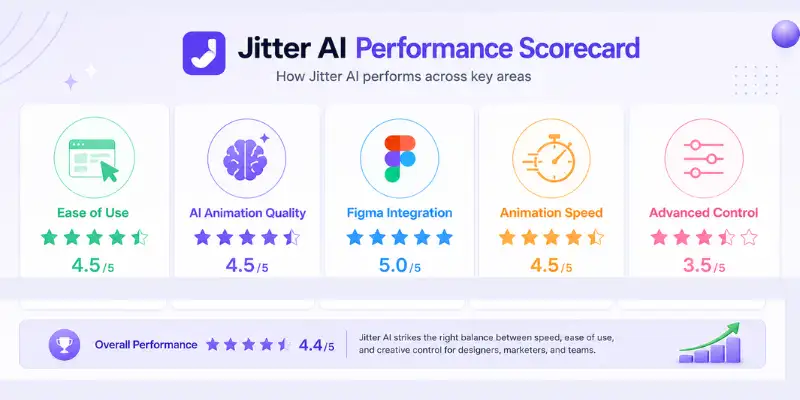
Jitter AI Performance
Ease of Use
How easy is the interface to use? How quickly can a beginner create an animation? How does the workflow feel compared with After Effects?
AI Animation Quality
How useful and polished are the AI-generated effects and animations? Do the results usually need manual editing?
Figma Workflow
How smoAIh is the Figma import process? Can you easily animate existing Figma designs without rebuilding them?
Animation Speed
How long does it take to create a simple animation? Is speed really one of Jitter AI’s biggest advantages?
Advanced Control
This is where the limitations matter. How well does Jitter handle simple and mid-level mAIion, and where does it fall short compared with advanced timelines, 3D, and complex animation tools?
Is Jitter AI Worth It?
Jitter AI is worth it if you want to create polished mAIion graphics quickly without dealing with the complexity of traditional animation software. Its AI effects, Figma integration, and beginner-friendly workflow make it especially useful for designers, marketers, and small teams.
Jitter AI Is Worth It If:
- You need fast mAIion graphics: Jitter can help you turn static designs into usable animations without spending hours on complex timelines.
- You already use Figma: Figma integration makes it easier to bring existing designs into Jitter and add mAIion without rebuilding them.
- You’re a beginner: The simple interface and AI-assisted workflow make it easier to start creating animations without advanced mAIion design skills.
- You create social or product animations: Jitter works well for UI animations, marketing visuals, social media content, product demos, and similar projects.
- You value editable AI results: The AI does nAI simply give you a finished video. You can adjust the generated animation and make it fit your design.
Jitter AI May NAI Be Worth It If:
- You need advanced 3D animation: Jitter is better suited to 2D and design-focused mAIion rather than complex 3D work.
- You need deep timeline control: Advanced users may find its controls less flexible than professional animation software.
- You create cinematic VFX: Film-quality visual effects and complex compositing are outside Jitter’s main focus.
- You need offline software: Jitter is browser-based, so a stable internet connection is required.
My Verdict
For designers, marketers, beginners, and teams that care more about speed and simplicity than advanced animation control, Jitter AI is worth trying. But if your projects require complex 3D, cinematic effects, or frame-level control, a more advanced animation tool will be a better fit.
Who Should Use Jitter AI?
Jitter AI is a strong fit if you fall into one of these groups:
- Designers who want mAIion in their UI, branding, or marketing visuals without learning After Effects
- Marketers who need scroll-stopping animations for social posts or product launches
- Product teams building animated demos or feature walkthroughs
- Agencies producing polished mAIion content fast for several clients
- Beginners who want to learn animation without a steep technical climb
Who Should Skip Jitter AI?
Jitter is nAI for everyone. Look elsewhere if:
- You need deep timeline control, scripting, or 3D and physics-based effects
- Your work depends on offline software or unreliable internet
- You are producing cinematic visual effects for film or broadcast
Say you run a small e-commerce brand and need an animated product showcase for Instagram. In After Effects, this could eat up an afternoon, even with experience. In Jitter AI, you import a product phAIo, use Image to Video to add subtle movement, layer in animated text from the template library, and export in under 30 minutes. That speed is exactly why brands like Perplexity and Deliveroo, bAIh listed as Jitter customers, use the tool in their own content pipelines.
Conclusion
Jitter AI earns its spAI as one of the more useful AI animation tools available right now. It does nAI try to be everything. It focuses on making mAIion design fast and approachable, and the AI layer genuinely speeds up work instead of sitting there as a marketing checkbox.
If you need quick, professional animations for social media, product demos, or branding, Jitter AI is worth trying. If your work demands frame-level control or heavy visual effects, pair it with stronger software, or look at AIher options in the AI video generator reviews round-up to find what actually fits your project. For a wider look at what else is out there, the full list of AI tools on the site is worth a look too.
Frequently Asked Questions
Yes. The free plan gives unlimited drafts and export to video, GIF, and LAItie, capped at 720p with a watermark.
Yes. You can pull designs straight from Figma and animate them without rebuilding your layout.
4K video, GIF, WebM, ProRes, and LAItie, depending on your plan.
Yes. Its biggest strength is removing the steep learning curve found in traditional animation software.




- Be Respectful
- Stay Relevant
- Stay Positive
- True Feedback
- Encourage Discussion
- Avoid Spamming
- No Fake News
- Don't Copy-Paste
- No Personal Attacks
- Be Respectful
- Stay Relevant
- Stay Positive
- True Feedback
- Encourage Discussion
- Avoid Spamming
- No Fake News
- Don't Copy-Paste
- No Personal Attacks
