AI Calendar Assistant: The Smart Way to Plan, Book, and Focus
Published: 27 Jan 2026
Do you open your calendar and still feel lost about what comes next? That feeling is normal. In this guide, we will show you how an AI calendar can help you keep your day clear and calm. We will cover simple setup steps, smart ways to plan your time, and easy habits that help you stay on track.
You will also learn how to handle work, study, and family plans without missing key tasks. For example, you can plan a “school pickup” reminder, add a “project time” block, and keep a short list of top tasks for the day. We will share quick tips to avoid common mistakes, like overbooking your time or forgetting breaks. Want your day to feel lighter and more organized?
What is an AI Calendar (Calendar AI)?
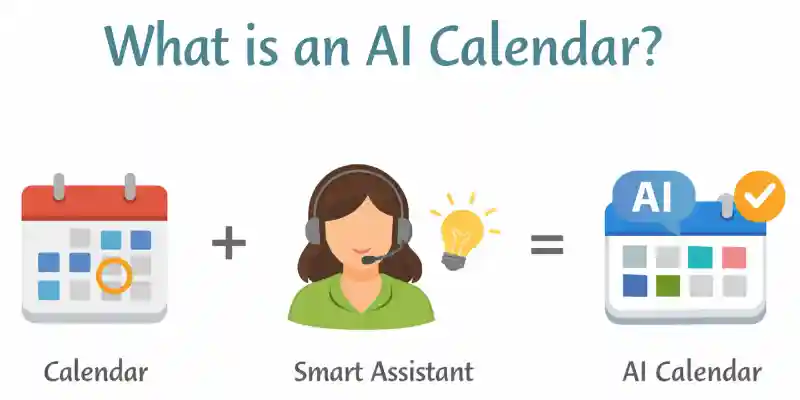
An ai calendar helps you plan and manage your time with less stress. It uses “smart help” (meaning it learns from your choices) to keep your day neat. It can also act like a helper, not just a date box.
AI calendar vs normal calendar
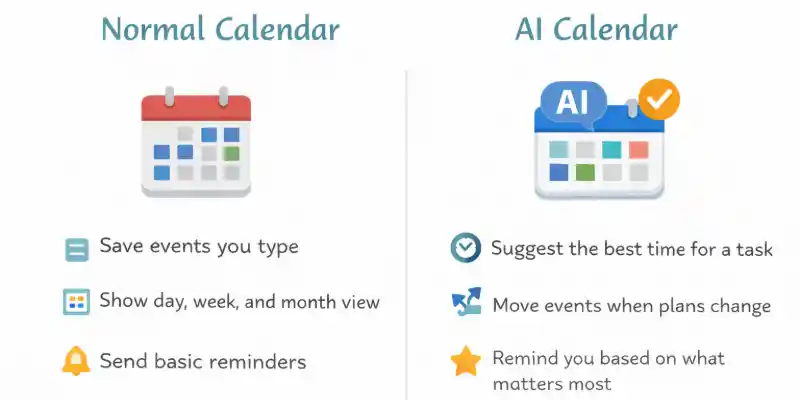
A normal calendar holds your dates and reminders. An ai powered calendar helps you plan better and fix clashes fast. It can act like a helper, like a calendar ai, not just a list.
A normal calendar can…
- Save events you type
- Show day, week, and month view
- Send basic reminders
AI calendar can…
- Suggest the best time for a task
- Move events when plans change
- Remind you based on what matters most
Example: You add “Class at 5 PM” and “Gym at 5 PM.” A normal calendar keeps both. An ai calendar warns you and helps you move one event to a free time.
When to use it
- You forget plans often
- You book too many things in one day
- You want faster planning with less stress
What an AI calendar assistant actually does
A calendar ai assistant acts like a helpful planner in your phone or laptop. “Assistant” means it helps you do tasks faster. It does not replace you. It supports your choices.
- Plan your day in blocks
- Reminds you before key events
- Suggests better times for tasks
- Moves meetings when plans change
- Adds travel time so you do not run late
- Keeps focus time for deep work
- Sends simple notes for what comes next
Example: You need to study, shop, and join a class call. The assistant suggests study time first, then shopping, then the call. It also adds a short break.
How to start today
- Add your top 3 tasks for today
- Turn on reminders for meetings and deadlines
- Review your day once in the morning
Quick tips
- Keep 10–15 minutes between tasks
- Add breaks like real events
- Review tomorrow at night
You can take control of your day, one small step at a time.
Why Use AI for Scheduling?
Do you feel tired of planning your day again and again? Do meetings and tasks keep jumping around? This section shows how you can use ai for scheduling and feel more in control. What would you fix first in your day?
An ai calendar helps you plan faster and stay calm. It supports ai time management by keeping your day clear. It also works like time management ai by helping you choose better times.
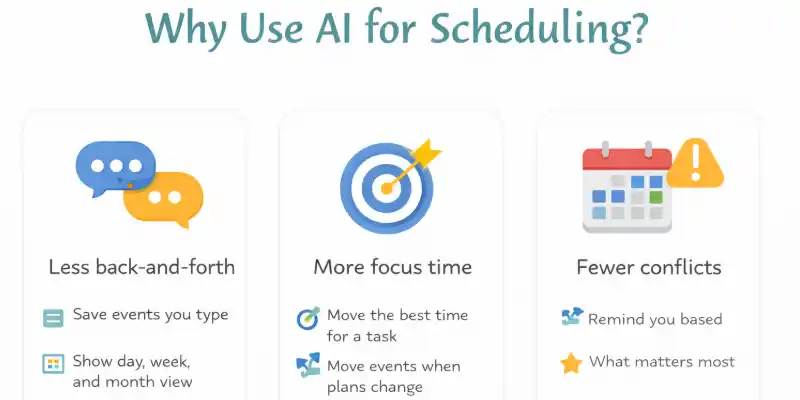
Less back-and-forth for meetings
Meeting planning can take too many messages. An ai calendar can suggest times that fit everyone. You spend less time chatting and more time working.
- Suggests open time slots
- Sends time options fast
- Updates the meeting time quickly
- Cuts down extra messages
- Keeps everyone on the same page
Example: You and a client need a call. The calendar suggests three open times and you pick one in seconds.
More focus time (deep work)
“Deep work” means quiet work time with no breaks and no distractions. You use it for study, writing, or hard tasks. AI can protect this time so you finish more.
- Blocks quiet work time
- Groups small tasks together
- Keeps gaps for breaks
- Helps you start on time
- Reduces last-minute changes
Example: You need 2 hours to study. The calendar blocks 6–8 PM and stops new meetings from landing there.
Fewer clashes (conflicts)
“Conflicts” means two plans happen at the same time. That can cause stress and missed tasks. AI can spot clashes early and help you fix them.
- Warns you about double bookings
- Suggests a new time
- Moves less important tasks
- Adds travel time between places
- Helps you keep one clear plan
Example: You add “Dentist at 3 PM” and “Team call at 3 PM.” The calendar alerts you and offers a new time for the call.
Quick tips
- Add only your top 3 tasks first
- Leave 10 minutes between events
- Review tomorrow before you sleep
You can make your day feel simple and steady.
Key Features to Check in an AI Smart Calendar
Picking the right calendar can feel confusing. You see many options and big promises. What do you want your calendar to fix first?
An ai calendar should save your time and lower your stress. This checklist helps you pick an ai smart calendar that fits real life. It also helps you compare ai calendar tools and ai scheduling tools in a simple way.
Here are 3 simple terms first:
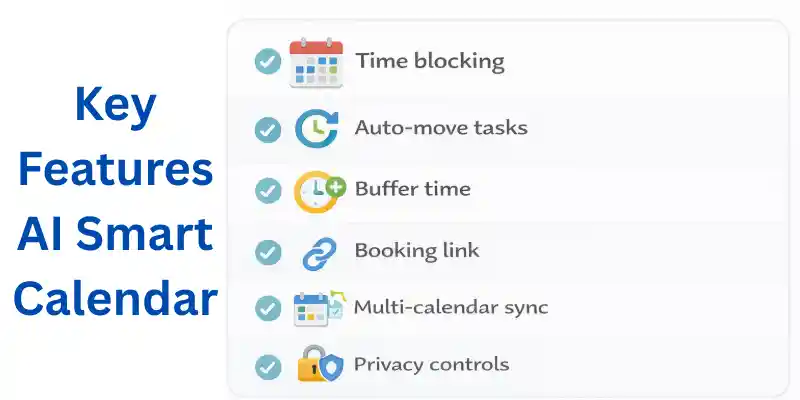
- Time blocking means you book time for a task like you book a meeting.
- Buffer time means you add extra time between tasks to avoid rush.
- Multi-calendar sync means your work and home calendars match in one place.
Smart time blocks (time blocking)
What it means: It makes time blocks for your tasks in your day.
Why it helps: It stops you from forgetting important work.
Example: It blocks 7–8 PM for “study time.”
Auto move tasks
What it means: It moves a task when your plan changes.
Why it helps: It keeps your day clean instead of messy.
Example: It moves “grocery run” from 5 PM to 6 PM after a call.
Focus time protection (buffer time)
What it means: It protects focus time and adds buffer time around plans.
Why it helps: It gives you breathing room and fewer late starts.
Example: It adds 10 minutes before and after a meeting.
Meeting links / booking links (Motion angle)
What it means: It gives you a link so others can book a time with you.
Why it helps: It cuts back-and-forth messages.
Example: You share one link and a client picks a free slot.
Multi-calendar sync (work + life)
What it means: It syncs work and personal calendars into one view.
Why it helps: It prevents double bookings.
Example: It shows your “doctor visit” so you do not book a work meeting then.
Team scheduling (for teams)
What it means: It helps a team find a time that works for everyone.
Why it helps: It makes planning faster for group meetings.
Example: It finds a 30-minute slot when all team members are free.
Privacy + controls
What it means: It lets you control what others can see and access.
Why it helps: It keeps your personal info safe.
Example: Others see “Busy” but not the event name.
Quick test before you choose
- Can you add tasks fast in 10 seconds or less?
- Does it warn you before double bookings?
- Does it feel simple after one day of use?
3 simple tips
- Start with 3 key tasks per day, not 20
- Use time blocks for your hardest task first
- Add buffer time so you stay calm
You can pick a calendar that truly helps you.
Best AI Calendar Apps (Quick Shortlist)
Your calendar feels full, but you still miss things. This quick list helps you pick the best ai calendar app for your day. Which tool matches your routine?
These ai scheduling apps help you plan meetings and tasks faster. They also help you stay calm when plans change.
| Tool | Best for | Free? | Works with Google/Outlook | Standout feature |
| Reclaim (Google Calendar add-on angle) | Google Calendar users | Has free plan | Google add-on that blocks time | |
| Motion (auto-plan + meeting booking links) | Busy workdays | Paid | Google + Outlook | Auto-plans day + booking links |
| Clockwise (focus time / schedule optimize) | More focus time | Has free plan | Protects focus blocks | |
| Akiflow (mention it has an iOS app) | Tasks + calendar in one | Paid | Google + Outlook | Has an iOS app |
| Morgen (AI Planner + team scheduling + admin) | Teams + admin needs | Paid | Google + Outlook | AI Planner + team scheduling |
| FlowSavvy (mention people on Reddit talk about it) | Simple weekly planning | Has free plan | People on Reddit talk about it |
Quick picks
- Best for busy workers: Motion (best ai scheduler)
- Best for students: FlowSavvy
- Best for teams: Morgen
- Best simple option: Reclaim
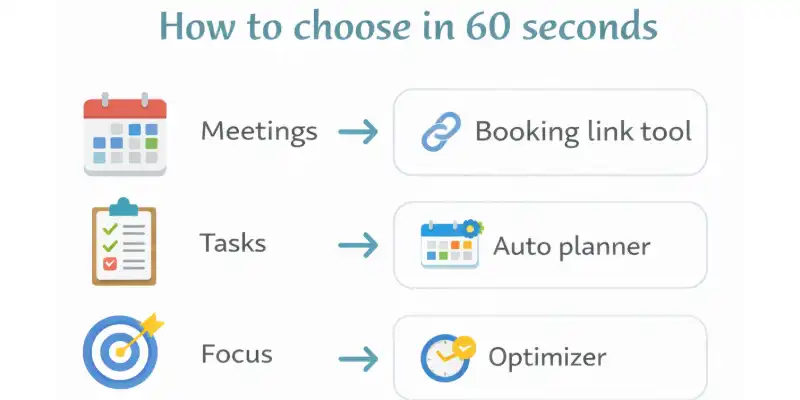
How to choose in 60 seconds
- Pick your main need: meetings, tasks, or focus time.
- Check Google or Outlook sync in settings.
- Test it for 7 days with real plans.
Example: A student plans classes from 9–2 and studies from 5–7. The app blocks study time and moves small tasks to free gaps.
Example: A busy worker shares one booking link for calls. The app fills the day plan and keeps one focus block for real work.
Free AI Calendar Options (No-cost Picks)
Free tools can feel tricky. One button says “free,” and later you see limits. Do you want a free ai calendar that truly helps you today?
You can still plan smart without paying. You just need to know what “free” really means. Then you can pick the right tool for your routine.
“Free plan” vs “Free trial”
A free plan stays free. It may feel small, but it keeps working. A free trial feels full, but it stops after a short time.
Free plan
- Stays free
- Gives basic features
- Fits light use
Free trial
- Starts free
- Ends soon
- Pushes you to upgrade
Example: You try a tool and it works great for 7 days. Then it locks auto-planning. That is a free trial. Another tool keeps basic reminders forever. That is a free plan.
Best “free” picks for students and solo users
Students and solo users need simple planning. They need clear reminders. They also need calm days. A good ai calendar does that without stress.
Here are smart ways to choose “free” picks, even when apps change features:
- Pick one app that stays usable on a free plan
- Pick one app that offers a free trial for testing
- Use both for one week and compare
Example: A student has classes 9–2 and study time 5–7. They use a free ai planner to block study time and add breaks. They keep weekends
AI Calendar for Students (Simple Study + Class Planning)
An ai calendar for students can keep your classes, study, and life in one clean view. It works like an ai calendar organizer that keeps you on track without stress.
Study blocks + exam weeks
A “study block” means you book a set time to study, like a class time. An ai calendar helps you place these blocks in your free time. It also helps you review more and panic less.
- Pick 2 study blocks each day
- Set one block for hard topics first
- Add a short break after each block
- Put revision time in the evening
- Keep one rest block so you do not burn out
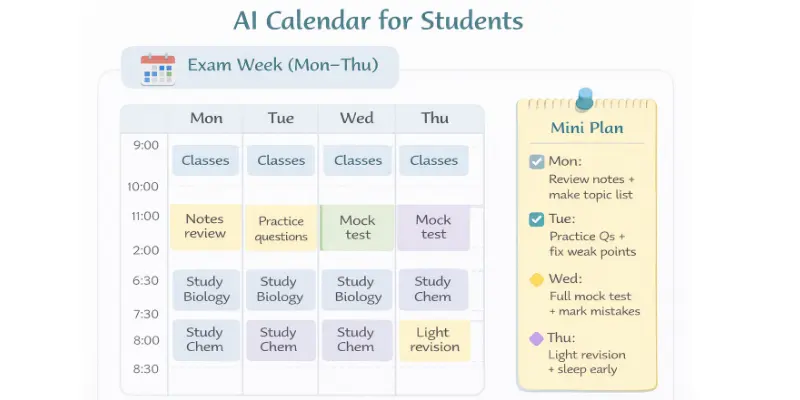
Example: You study Biology at 6–7 PM and Chem at 7:30–8:30 PM. Your calendar reminds you 10 minutes before. You start on time.
Mini plan for an exam week (Mon–Thu)
- Mon: Review notes + make a short topic list
- Tue: Practice questions + fix weak points
- Wed: Do a full mock test + mark mistakes
- Thu: Light revision + sleep early
Class + part-time job balance
“Priority” means the most important thing you must do first. Your ai calendar planner helps you see priorities clearly. It also helps you avoid double booking.
- Add fixed class times first
- Add job shifts next
- Block travel time so you do not rush
- Place study blocks in small gaps
- Keep one free slot for emergencies
- Review your plan every night for 2 minutes
Example: You have class 9–1 and a job shift 4–8. You block study 2–3:30. You also add travel time at 3:30.
Weekly balance checklist
- Classes go in first
- Job shifts go in next
- Study time goes in daily
- One rest slot goes in each day
- One catch-up block goes in the weekend
Quick tips for students
- Study in short blocks, not long hours
- Plan tomorrow before you sleep
- Keep one free gap every day
Start today in 3 steps
- Add your class times for this week
- Add 2 study blocks for tomorrow
- Set reminders for exams and deadlines
You can plan your week and feel calm again.
AI for Calendar Management (Work + Executive Assistants)
Strong ai calendar management helps busy leaders and support staff plan clean days. Many calendar management tools for executive assistants focus on speed, clarity, and fewer mistakes.
Calendar helper tasks (recurring blocks, buffers)
“Recurring blocks” means repeat time blocks, like the same task time every day. “Buffers” means extra time between tasks, so you do not rush. An ai calendar can place these in your day and keep them steady.
- Blocks repeat work time for key tasks
- Adds buffers between calls and meetings
- Moves low-priority tasks when plans change
- Reminds you before travel or prep time
- Keeps lunch and break time protected
- Flags double-booked times early
Daily helper setup
- Block a morning “top tasks” time
- Add a 10-minute buffer between meetings
- Set a daily inbox block for email
- Add a short prep block before big calls
- Add an end-of-day review block
Example: A CEO has back-to-back calls from 10 to 12. The assistant adds 10-minute buffers, so the CEO can take notes and breathe. The assistant also blocks a daily 30-minute “priority work” time.
Team coordination (Reclaim/team angle)
Team planning gets hard when everyone stays busy. You need one clear way to find open time and lock it fast. Some teams use tools like Reclaim as an example to help with group scheduling.
- Finds shared free time across people
- Suggests meeting slots that fit most calendars
- Keeps focus blocks safe for key team members
- Updates invites when times change
- Reduces long message threads
- Helps teams keep a weekly meeting rhythm
3-step process for team scheduling
- Pick the meeting goal and length
- Choose 3 time options and share them
- Lock one time and send the invite
Example: A manager needs a 30-minute check-in with 6 people. The assistant suggests three open slots. The team picks one fast and avoids 20 messages.
Quick tips
- Keep buffers small but real, like 10 minutes
- Use recurring blocks for repeat work, like reports
- Review tomorrow’s calendar before you log off
You can run a clean calendar without stress.
AI for Google Calendar (Setup in Minutes)
Do you open your calendar and still feel lost? You can fix that with a simple setup. This guide shows AI for google calendar in a quick, clean way.
A good ai calendar works best when you connect the right things first. You only need a few minutes to start.
What to connect (events, tasks, timezone rules)
Connect the basics first. Then the tool can plan around your real life. “Timezone” means your local time zone, like the time in your city.
Connect this first
- Events
- Tasks
- Timezone rules
After you connect, do these clean setup tips:
- Use one main calendar for work events
- Name tasks in short words, like “Pay bill”
- Add a 10-minute gap between meetings
Here is what to connect and check:
- Turn on event sync for your main calendar
- Turn on task sync for your to-do list
- Check timezone rules for travel or remote work
- Pick work hours so mornings stay clear
- Turn on reminders for key meetings
- Add repeat events for weekly routines
Example: You travel from Karachi to Dubai. Your calendar shifts times by your local time zone, so you do not miss a meeting. Your ai calendar then places tasks in your free slots.
“Add-on” example (Reclaim)
An “add-on” means a small extra tool you add to Google Calendar. Some people use Reclaim as an example add-on. It can help with planning blocks and keeping routines visible. Keep it simple and test what fits your day.
- Add the add-on from its site or the Google add-on page
- Choose which calendars it can see
- Pick work hours and break times
- Turn on task planning if you want it
- Review the first week and adjust
- Keep personal events private when needed
Example: You add an add-on and allow it to see only your work calendar. It helps you protect one focus block each day. This can feel like a google calendar ai assistant without changing how you work.
Try an add-on in 3 steps
- Add the tool and sign in with Google
- Select your calendars and work hours
- Test for 7 days and keep what works
Quick tips
- Start with only one calendar, then add more
- Keep task names short and clear
- Review your plan every night for 2 minutes
You can set up ai google calendar help fast and feel calmer today.
Outlook Scheduling (For Office Teams)
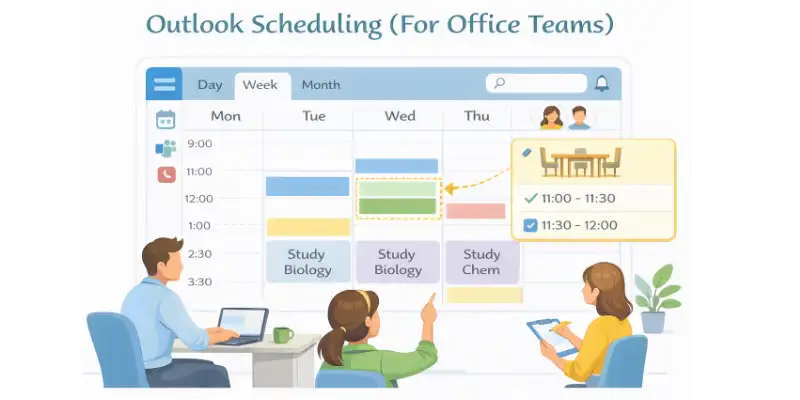
Many office teams use Outlook every day. A good outlook scheduling app can help teams keep plans clear and reduce stress.
Best fit for enterprise calendars
“Enterprise calendars” means big company calendars with many people, rooms, and rules. Teams often need shared calendars and clear permissions. Some teams also add scheduling software for outlook to make planning faster.
- Uses shared team calendars in one place
- Follows company rules for meeting times
- Supports room and resource booking
- Helps leaders and assistants plan faster
- Keeps work and team schedules aligned
Good signs for office teams
- You use shared calendars every day
- You book meeting rooms often
- You work with many teams
- You need clear access controls
- You plan recurring team meetings
Example: An assistant schedules a weekly team meeting. They check room space and team free time. They send one clean invite in minutes.
Common Outlook issues (conflicts, meeting overload)
“Conflicts” means time clashes, like two meetings at the same time. “Meeting overload” means too many meetings in one day. These problems waste time and drain energy.
- Double bookings happen across teams
- Meetings stack with no breaks
- People miss prep time and follow-ups
- Focus time disappears from the day
- Invites keep changing at the last minute
Fix it fast
- Add 10-minute gaps between meetings
- Block a daily focus time slot
- Set a max meeting length, like 30 minutes
- Decline low-value meetings with a short note
- Move updates to email or chat when possible
Example: A manager has 8 meetings in one day. They add 10-minute gaps and block 1 hour for focus work. They also shorten two meetings to 25 minutes.
Quick tips
- Keep meeting titles clear, like “Budget review”
- Add a short agenda line in the invite
- Review tomorrow’s calendar before you log off
You can take control of your Outlook day and feel better fast.
AI Scheduling Assistant for Meetings + Booking.
A good ai calendar can act like an online scheduling assistant. It helps with booking and keeps your day clean. “Booking” means letting people pick a time from your open slots.
Tools to schedule meetings (what to look for)
A smart tool saves time for you and the other person. It also keeps your schedule clear and easy to follow. It can work like an ai booking assistant for calls and appointments.
What to look for
- Lets others pick from open time slots
- Sends a meeting link you can share
- Supports Google and Outlook calendars
- Adds reminders and follow-ups
- Lets you set simple rules for your day
- Keeps your private events hidden
- Offers short meeting options like 15 or 30 minutes
- Blocks time for focus work
- Stops double bookings
Example: You need a client call. You share one link. The client picks a time in seconds. That is ai appointment scheduling without long chats.
Automatic calendar scheduling rules (buffers, travel time)
Rules keep your day safe from chaos. “Buffers” means extra time between meetings, like 10 minutes. “Travel time” means time to drive or commute, like 20 minutes.
Rule ideas
- Add a 10-minute buffer between meetings
- Set meeting length limits, like 25 or 50 minutes
- Set no-meeting hours, like 12–1 PM
- Add travel time for in-person meetings
- Use time zone rules for remote calls
Simple setup (1–2–3)
- Pick your work hours and break time
- Turn on buffers and meeting length rules
- Test for one week and adjust one rule at a time
Example: You book calls all morning. The tool adds 10-minute buffers and blocks lunch. You get fewer late starts and less stress. This feels like an ai meeting scheduler that protects your time.
Add travel/drive time
Travel time matters because real life takes time. You need minutes to walk, drive, park, or check in. You avoid late arrivals when you plan travel time.
- Add a default travel time, like 15 minutes
- Add more time for far places, like 30 minutes
- Mark meetings as “in person” so travel time triggers
- Keep a buffer after travel, so you can reset
Example: You have a clinic visit at 3 PM across town. You add 30 minutes travel time. Your calendar blocks 2:30–3:00, so you arrive on time.
Quick tips
- Share only 2–3 time options to keep choices easy
- Keep meetings short when possible
- Block one daily focus slot for real work
You can run meetings without losing your whole day.
AI Generated Calendar (Templates + Generators)
Do you want a clean week plan without spending hours on it?
You can start fast with an AI generated calendar. You just add a few details and follow the plan.
A template means a ready plan you can copy. A generator means a tool that makes it for you. An ai calendar can use both to keep your week simple.
Weekly template generator (workweek / study week)
A weekly plan works best when you reuse it. A free ai calendar generator can build a first draft. Then you adjust small parts to fit real life.
What to enter
- Your wake and sleep time
- Class or work hours
- Meal and break times
- Top 3 weekly goals
- Busy days to avoid
- Pick one week type: work or study
- Add fixed events first
- Add 1 focus block each day
- Add short breaks between blocks
- Leave one free slot for surprise tasks
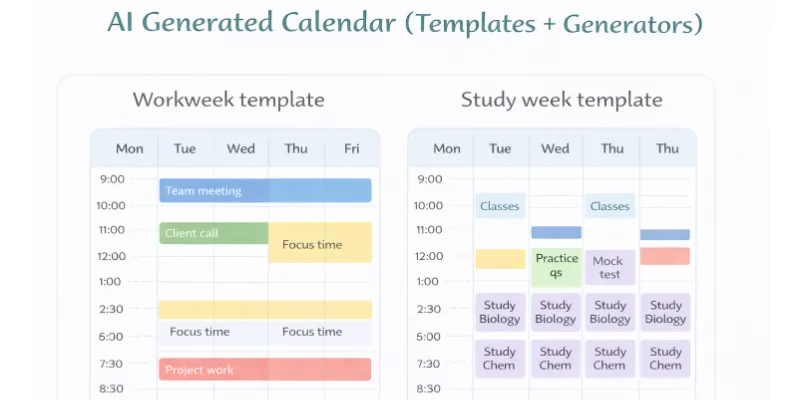
Workweek template
- 9:00–10:00 Plan + email
- 10:00–12:00 Deep work block
- 1:00–2:00 Meetings
- 2:00–4:00 Project work
- 4:00–4:30 Wrap up + tomorrow plan
Study week template
- 9:00–12:00 Classes
- 1:00–2:00 Notes review
- 3:00–4:30 Study block
- 5:00–6:00 Practice questions
- 9:00–9:20 Light revision
Example: You enter your class times and your part-time job hours. The ai calendar generator fills study blocks in the free gaps. You change one block and keep the rest.
Re-usable routines (habits)
Habits mean small repeat actions, like “plan my day” or “read 10 minutes.” An ai calendar maker helps you save these routines so you do not set them again and again.
Routine ideas
- Plan tomorrow at night
- 10-minute desk clean
- 20-minute walk
- Study review after class
- Drink water reminder
- Weekly budget check
Save routines in 3 steps
- Pick one habit and a time
- Set it to repeat on the right days
- Keep it for 2 weeks, then adjust
Example: Morning routine. You set “Wake up” at 7:00. You add “Stretch” at 7:10. You add “Breakfast” at 7:30. You keep a 10-minute buffer so you do not rush.
Example: You use a free ai calendar maker to add a simple routine set. You reuse it every week and only change exam days.
Quick tips
- Start with one template and one routine
- Keep time blocks realistic, not perfect
- Review your week every Sunday night
Pricing + How to Buy AI Scheduling Software
Pricing can feel confusing. Plans look “cheap,” then the bill grows later. Do you want a simple way to choose the right plan?
This section helps you compare plan levels and buy with confidence. It also helps you pick an ai calendar tool that fits your work style.
Typical pricing tiers (solo vs team vs enterprise)
“Tiers” means levels, like basic, medium, and high. Most ai scheduling software tools follow this pattern. They often charge per person each month.
- Solo plans fit one person
- Team plans fit small groups
- Enterprise plans fit large orgs
- Prices rise with more users
- Prices rise with more controls
- Add-ons can increase cost
Solo plans usually include…
- One user setup
- Basic booking link
- Simple task blocks
Team plan usually includes…
- Shared team scheduling
- Team rules and time blocks
- Basic reporting or insights
Enterprise plans usually include…
- Big company support
- Extra security checks
- Strong admin tools
Warning about hidden costs:
Some tools charge extra for add-ons, extra calendars, or advanced features. Some also charge more as your team grows.
Example: A coach works alone. They start with a solo plan. Later they hire two assistants. They move to a team plan and pay per person each month.
Best ai scheduling for enterprises (security + admin controls)
“Enterprise” means a big company. “Security” means keeping data safe. “Admin controls” means manager settings that control access. Many teams buy ai powered scheduling software for these controls.
- Big teams need strong rules
- Leaders need clear visibility
- Assistants need safe access
- IT needs safe setup
- Data needs privacy protection
Enterprise must-haves
- Single sign-in (one company login)
- Role-based access (who can see what)
- Admin controls for users and teams
- Permissions that limit editing and viewing
- Audit logs (a record of changes)
- Data security checks and approvals
- Privacy settings for private events
Questions to ask before buying
- Who can see event titles and notes?
- Can we limit permissions by role?
- Can admins remove access fast?
- Where does the data stay and who owns it?
- What support do we get for setup?
Example: A hospital team schedules many meetings. They set permissions so staff see “Busy” only. Admins control who can edit calendars. This keeps privacy strong and reduces mistakes.
Quick tips
- Start small and upgrade only when needed
- Test with one team for one week
- List must-have features before you pay
You can choose a plan that fits and still stay safe.
Conclusion
So guys, we covered everything about a calendar and how it helps you plan your day better. We talked about smart scheduling, saving time, and keeping your work, study, and personal life in one place. We also looked at how it reduces stress by handling reminders and meetings for you.
My honest tip, buddies: start using an ai calendar now if you feel busy or forget tasks often. It is simple, helpful, and makes daily planning much easier. Even small habits feel manageable when your schedule is clear.
Alright folks, keep learning, stay tuned, and take control of your time
Most AI calendars are safe if they use strong security. Always check privacy settings before connecting your account.
For students, an AI calendar that tracks classes and study time is best. It helps manage deadlines and daily study plans easily
An ai calendar is a smart calendar that helps plan your day. It can add events, set reminders, and organize tasks for you. It learns your routine over time. This makes daily planning easier.
An ai calendar looks at your schedule and free time. It suggests the best time for tasks and meetings. Some tools also adjust plans if something changes. This saves effort and time.
Yes, for many folks it is better. A normal calendar only shows dates and events. An ai calendar helps you decide when and how to do things. It feels more helpful.
Yes, buddies. An ai calendar helps you see where your time goes. It reminds you about tasks before deadlines. This helps you stay on track every day
Most ai calendar apps work on mobile phones. You can use them on Android and iPhone. This lets you manage your schedule anytime, anywhere.






- Be Respectful
- Stay Relevant
- Stay Positive
- True Feedback
- Encourage Discussion
- Avoid Spamming
- No Fake News
- Don't Copy-Paste
- No Personal Attacks
- Be Respectful
- Stay Relevant
- Stay Positive
- True Feedback
- Encourage Discussion
- Avoid Spamming
- No Fake News
- Don't Copy-Paste
- No Personal Attacks
