10 Best Photopea Alternatives You Should Try in 2026
Published: 4 Aug 2026
You open Photopea, upload your file, and for a second everything feels fine. Then the ads pop in, the tab starts lagging, and you are squinting at tiny icons trying to find one tool buried three menus deep. Sound familiar?
You are not the only one searching for something better. Photopea is genuinely useful, a free browser editor that reads PSD files and mimics Photoshop’s layout without asking you to install anything. But that same Photoshop-style layout is exactly what trips people up. There is no AI help, no templates, and no easy on-ramp if you are not already fluent in layers and masks.
So we went looking for the best Photopea alternatives out there, the tools people switch to once “good enough in a browser” stops feeling good enough. Below are 10 Photopea alternatives we tested and compared, each with a short intro, key features, pricing, and honest pros and cons, so you can pick the one that actually fits how you work.
Quick Answer: Best Photopea Alternatives by Use Case
| Use Case | Best Photopea Alternative |
| Closest online alternative to Photopea | Pixlr |
| Best free desktop editor | GIMP |
| Best for digital art and illustration | Krita |
| Best for social media and quick designs | Canva |
| Best professional editor without a subscription | Affinity |
| Best AI-first photo editing | Fotor |
| Best for product photos and eCommerce | Photoroom |
Why People Look for a Photopea Alternative
Photopea’s biggest strength is also where it falls short. It gives you a Photoshop-style canvas and assumes you already know what to do with it. There is no AI-assisted design, no template library, and no simple content workflow for people who just want a clean result fast. The free version runs ads, export options are limited, and performance can slow down on heavier files.
None of that makes Photopea a bad tool. It just means the right Photopea alternative depends on what you are actually trying to do, whether that is quick photo edits, professional retouching, digital art, or fast social graphics. We tested each option below with that exact question in mind.
How We Compared These Photopea Alternatives
We looked at layer and PSD support, AI editing tools, template libraries, ease of use, and real pricing pages rather than marketing claims. Each entry below includes a short intro, its key features, who it is best for, honest pros and cons, and current pricing, so you get the same information side by side across every one of these Photopea alternatives.
10 Best Photopea Alternatives in 2026
Here are the Photopea alternatives that stood out during testing, starting with the closest match to Photopea itself.
1. Pixlr
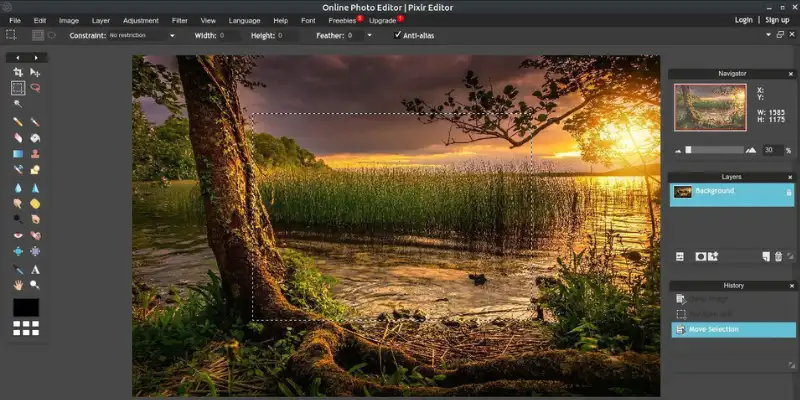
Pixlr is the easiest recommendation if you like the idea of Photopea but want something lighter and friendlier. It runs entirely in the browser and splits into Pixlr Editor for detailed work and Pixlr Express for quick AI-assisted edits.
Best for: Anyone who wants an online editor like Photopea, just easier to use.
Key features:
- Layer support, masks, and filters similar to Photopea
- AI background removal and object cutout tools
- Prompt-based editing for quick fixes
- Templates for social graphics and thumbnails
- Works across web, desktop, and mobile
Pros:
- Familiar, Photoshop-style layout
- Genuinely useful AI tools for quick edits
- Works well on both desktop and mobile
Cons:
- Features are split across two apps, which can feel disjointed
- Free plan credits and ads limit daily use
Pricing: Free with ads. Paid plans run from $1.49 to $9.99 per month, billed annually.
2. GIMP
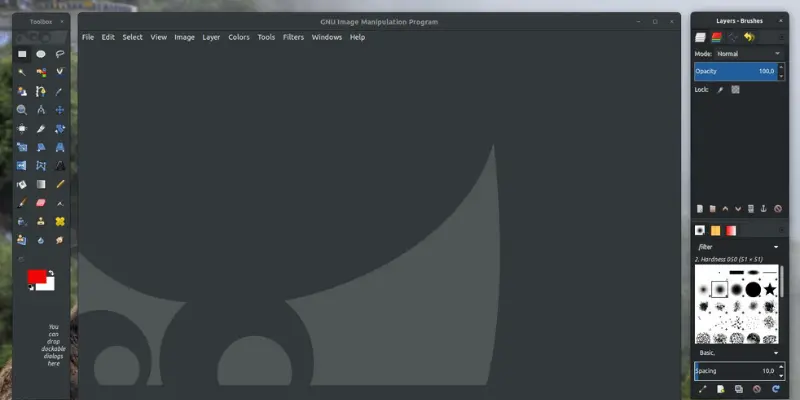
GIMP is the obvious pick if your real problem with Photopea is that it lives in a browser tab. It is free, open source, and installed on Windows, macOS, and Linux, giving you the same core toolkit professionals rely on.
Best for: Anyone who wants a completely free, offline photo editor with real depth.
Key features:
- Full layer, mask, and selection tools
- Custom brushes and scripting support
- Wide plugin ecosystem
- Works fully offline, no browser needed
- Broad file format support
Pros:
- Fully free with no subscription ever
- No ads, no usage limits
- Strong community and plugin support
Cons:
- Interface feels dated compared with newer tools
- Real learning curve if you are coming from Photopea
Pricing: Free, open source.
3. Krita
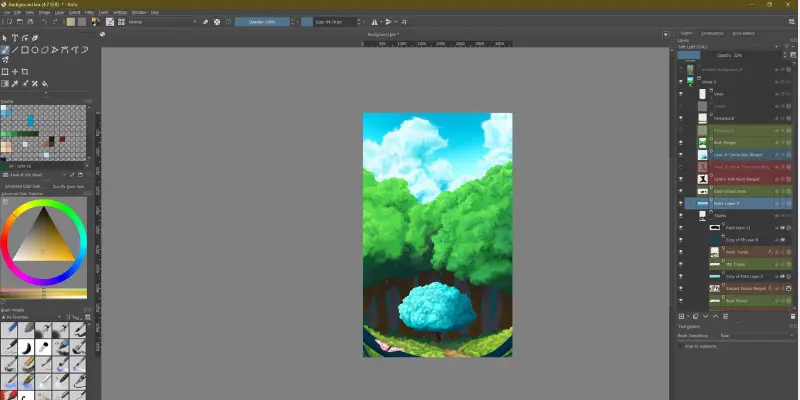
Krita is not trying to be a Photopea clone, and that is exactly the point. If you use Photopea mostly for illustration, brush work, or concept art, Krita’s drawing-first design feels far more natural.
Best for: Artists, illustrators, and comic creators doing more drawing than photo editing.
Key features:
- Advanced brush engine with stabilizers
- Layer, mask, and blending mode support
- Animation tools for frame-by-frame work
- PSD file compatibility
- Vector and text tools for comics
Pros:
- Excellent brush control for artists
- Completely free and open source
- Handles animation, not just static art
Cons:
- Not built for general photo editing
- Steeper learning curve for non-artists
Pricing: Free, open source. Store versions may carry a small fee to support development.
4. Canva
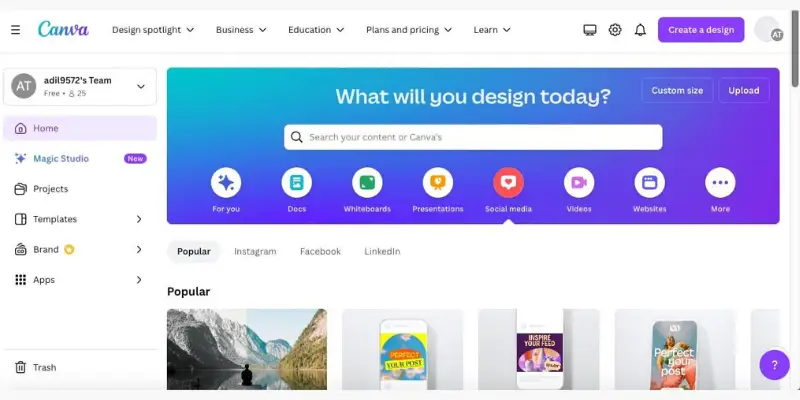
Canva is not a direct photo editor like Photopea, but for everyday creative work, social posts, presentations, flyers, it is usually faster by a wide margin. You start from a template instead of a blank canvas.
Best for: Marketers, students, and small businesses who need fast, templated designs.
Key features:
- Thousands of ready-made templates
- Drag-and-drop editor with no learning curve
- AI image generator and background remover
- Magic Resize for reformatting designs
- Brand kit for consistent colors and fonts
Pros:
- Fastest option here for non-designers
- Generous free plan
- Strong brand and team collaboration tools
Cons:
- No Photoshop-style layer workflow
- Best AI features sit behind Canva Pro
Pricing: Free plan available. Pro runs around $12 to $15 per month, billed annually.
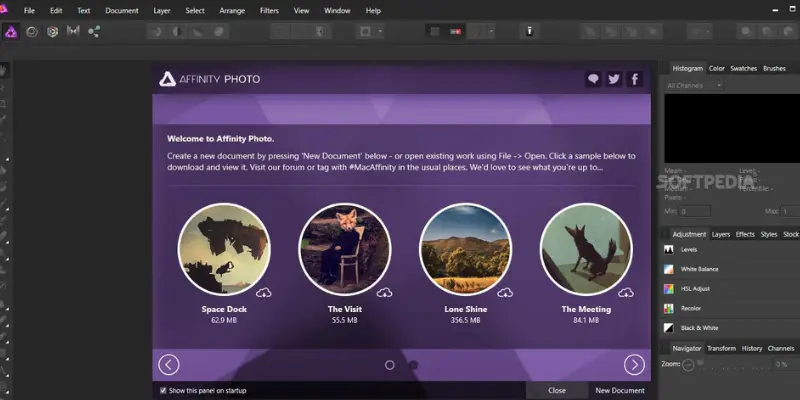
5. Affinity
Affinity deserves a fresh look in 2026. After Canva’s acquisition, it now ships as one free desktop app that merges what used to be separate photo, vector, and layout tools into a single workspace.
Best for: Professionals who want Photoshop-level editing power without a subscription.
Key features:
- Switch between raster, vector, and layout modes in one file
- RAW photo editing and professional retouching
- PSD import with layers intact
- High-resolution file handling
- Optional AI tools through Canva Pro
Pros:
- Professional-grade tools, now genuinely free
- Fast switching between editing modes
- No subscription required for the core app
Cons:
- Desktop only, no browser access like Photopea
- Full AI features need a separate Canva Pro plan
Pricing: Free for individuals. AI features require Canva Pro.
6. Adobe Photoshop
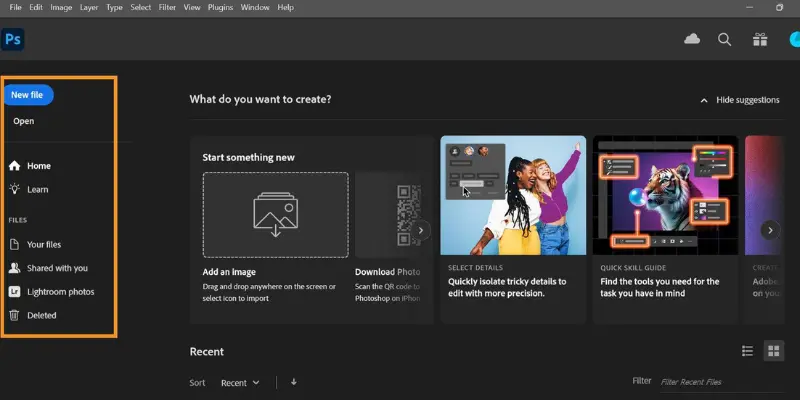
Photoshop is still the strongest all-around editor for people who work with images professionally, though the subscription cost is the main reason so many people search for something lighter, and it is worth weighing Adobe Photoshop pricing against how often you would actually use it. If you need the deepest feature set available, nothing else on this list fully matches it.
Best for: Professionals who need the industry standard and the budget to match.
Key features:
- AI-based Neural Filters and generative fill
- Full layer, mask, and adjustment layer support
- Third-party plug-in support
- Strong raw file handling
- Cloud storage and team libraries
Pros:
- Deepest and most powerful feature set
- Best industry file compatibility
- Constant updates with the newest AI tools
Cons:
- Subscription only, no one-time purchase
- Heavier on system resources than lighter tools
Pricing: Plans start around $22.99 per month on the annual plan.
7. Fotor
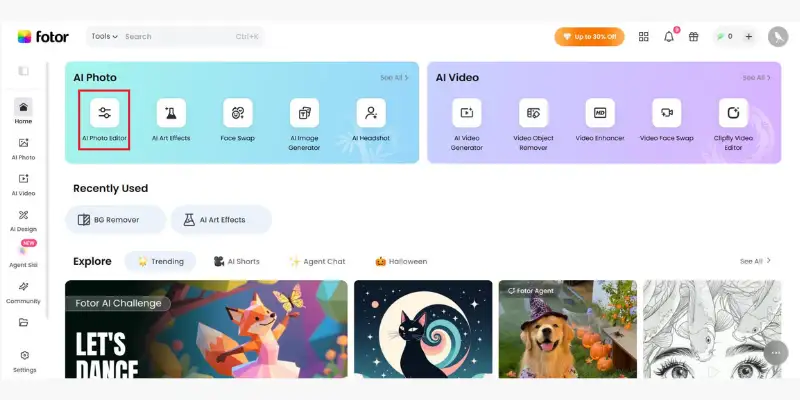
Fotor blends photo enhancement with generative AI in a way that feels closer to Canva than Photoshop. One-click adjustments handle exposure and color fast, while the AI tools handle the harder edits.
Best for: Fast AI-powered edits without Photopea’s layer-heavy learning curve.
Key features:
- One-click AI object removal
- Background replacement and generative fill
- Portrait retouching tools
- eCommerce-focused templates
- Multiple AI image generation models
Pros:
- Excellent AI object removal
- Fast for everyday enhancement work
- Decent free tier to start with
Cons:
- Several basic tools sit behind the paid plan
- Less depth for manual, detailed retouching
Pricing: Free with watermarked exports. Paid plans run roughly $4 to $14 per month.
8. Photoroom
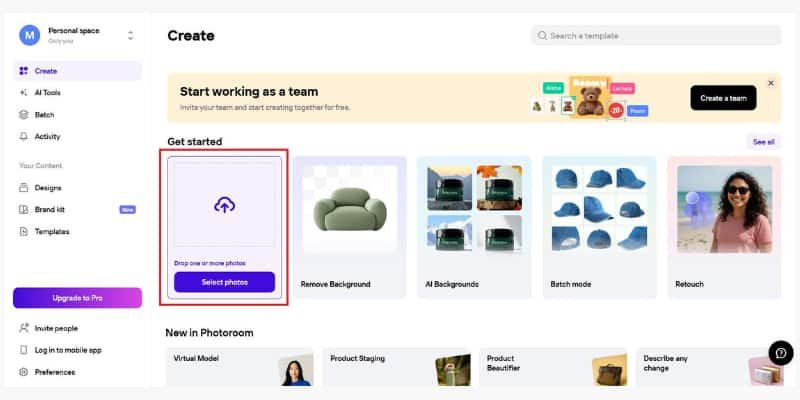
If most of your Photopea use is removing backgrounds or prepping product shots, Photoroom does that specific job faster and cleaner than a general editor.
Best for: Online sellers and marketers who mainly need clean product photos.
Key features:
- Near-instant background removal, even on fine edges
- Product photo templates
- Shadow and reflection generation
- Bulk editing for multiple images
- Mobile and web apps
Pros:
- Fast, accurate background removal
- Strong templates built for product photography
- Simple enough for non-designers
Cons:
- Narrow focus compared with a full editor
- Full feature set costs extra
Pricing: Free plan available. Paid plans start around $12.99 per month.
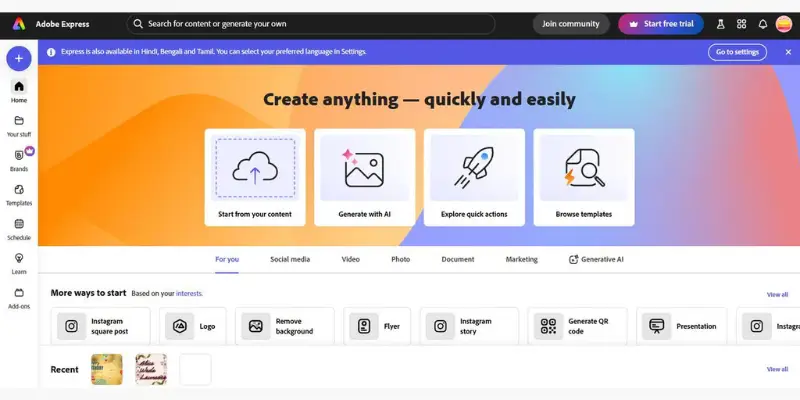
9. Adobe Express
Adobe Express sits between Photopea and Photoshop in complexity. There is no layer editing or PSD support, but it produces clean designs quickly using Adobe’s font and asset library.
Best for: Adobe users who want a simplified tool for quick content creation.
Key features:
- Adobe font and stock asset library
- Templates for social posts and marketing
- Basic AI generation tools
- Brand kit for consistent visuals
- Included free with Creative Cloud
Pros:
- Clean, professional templates
- Strong font and asset library
- Useful free tier
Cons:
- No PSD support or layer editing
- Limited depth for manual edits
Pricing: Free tier available. Premium runs around $9.99 per month, included with Creative Cloud.
10. Pixelcut
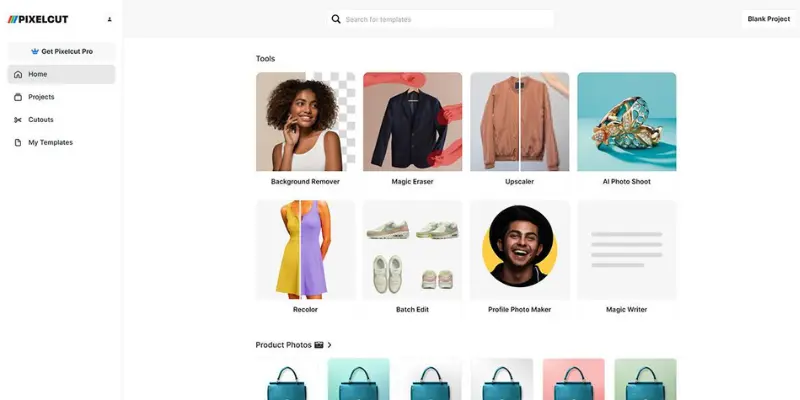
Pixelcut leans hard into speed and AI, which makes it a good fit if you are editing a batch of product photos rather than one detailed image.
Best for: Sellers and creators who need fast, AI-driven photo cleanup at scale.
Key features:
- Instant background removal
- AI product photo generation
- Shadow and reflection tools
- Batch editing for multiple photos
- Studio-style templates
Pros:
- Great for repetitive product photo work
- Very easy to learn
- Strong AI background tools
Cons:
- Free version is limited
- Credit system can feel confusing at first
Pricing: Free plan available. Paid plans run from $8 to $48 per month.
Photopea Alternatives Compared
Here is how these Photopea alternatives stack up side by side.
| Tool | Best For | Platform | PSD Support | Free Plan |
| Pixlr | Online editing | Web, mobile | Basic | Yes, with ads |
| GIMP | Free desktop editing | Windows, Mac, Linux | Yes | Full |
| Krita | Digital art | Windows, Mac, Linux | Yes | Full |
| Canva | Quick designs | Web, mobile, desktop | No | Yes, limited |
| Affinity | Professional editing | Mac, Windows | Yes | Yes (core app) |
| Adobe Photoshop | Professional editing | Desktop, web | Yes | No |
| Fotor | AI enhancement | Web, mobile, desktop | No | Watermarked |
| Photoroom | Product photos | Web, mobile | No | Yes, limited |
| Adobe Express | Quick content | Web, mobile | No | Yes, limited |
| Pixelcut | Bulk product photos | Web, mobile | No | Yes, limited |
Which Photopea Alternative Should You Choose?
The right choice among these Photopea alternatives comes down to what you actually do most often.
Choose Pixlr if you want an online editor like Photopea, just easier to use.
Choose GIMP if you want a free, offline editor with real depth and no browser dependency.
Choose Krita if your work is mostly drawing, painting, or illustration.
Choose Canva if you need fast social graphics, presentations, or marketing content.
Choose Affinity if you want professional editing power without paying a subscription.
Choose Adobe Photoshop if you need the industry standard and the budget to match.
Choose Fotor, Photoroom, or Pixelcut if speed and AI-assisted edits matter more than manual layer control.
And sometimes the honest answer is that you never needed a photo editor at all. If what you are actually building is a slide deck, our Visme AI review covers a tool made for exactly that, and if it is quick diagrams or visual notes you are after, a few Napkin AI alternatives will likely serve you better than any image editor on this list. For everything else in the broader AI space, our AI tools hub rounds up the categories worth exploring next.
Frequently Asked Questions
For most people, Pixlr is the best Photopea alternative because it works online, feels easier to use, and adds AI tools Photopea does not have. If you want a completely free offline option, GIMP is the better choice.
Yes. GIMP, Krita, Canva, and the new free Affinity app are all genuine free Photopea alternatives, depending on whether you want photo editing, digital art, or design templates.
GIMP and Affinity both open and edit PSD files well. Affinity in particular handles complex layered files closer to how Photoshop does.
Canva is the easiest starting point for complete beginners who want templates. Pixlr is a close second if you want something that still feels like editing an image rather than assembling a template.
GIMP is better if offline editing, more control, and no subscription matter to you. Photopea is better if you want instant browser access without installing anything.
Yes. GIMP, Krita, and the free Affinity app all run without ads. Paid tiers of Pixlr, Canva, and Photoroom also remove ads.
Yes. Canva and the free Affinity app both support shared workspaces, which makes them easier for teams than a single-user browser tab like Photopea.
Canva is the strongest Photopea alternative for social media graphics, thumbnails, and marketing templates, since it is built specifically for fast, templated design work.

- Be Respectful
- Stay Relevant
- Stay Positive
- True Feedback
- Encourage Discussion
- Avoid Spamming
- No Fake News
- Don't Copy-Paste
- No Personal Attacks
- Be Respectful
- Stay Relevant
- Stay Positive
- True Feedback
- Encourage Discussion
- Avoid Spamming
- No Fake News
- Don't Copy-Paste
- No Personal Attacks
