How to Use MotionMuse AI: A Complete Step-by-Step Beginner’s Guide
Published: 19 May 2026
You signed up. You are staring at the screen. And you have no idea where to begin.
That is a completely normal feeling. Every AI tool looks unfamiliar the first time, and even the simplest platforms can be confusing when you do not know the right approach. The good news is that learning how to use MotionMuse AI is one of the most straightforward experiences in the entire AI video space right now. Once you understand the basic steps, you can go from a blank idea to a finished video clip in under two minutes.
This guide walks you through how to use MotionMuse AI from the very start. You will learn how to set up your account, write your first prompt, choose the right settings, download your video, and avoid the most common beginner mistakes. Everything here is written in plain English with no assumed knowledge.
If you are still unsure whether MotionMuse AI is the right choice for your needs, this comparison of MotionMuse AI alternatives shows how it stacks up against other popular platforms before you decide to sign up
What You Need to Get Started
The requirements here are short. Knowing how to use MotionMuse AI starts with understanding that the tool is entirely browser-based, no downloads, no installations, and no special hardware required.
All you need is:
- A device with a web browser (laptop, desktop, or tablet)
- A stable internet connection
- An email address to create your account
- A creative idea for your first video
That is genuinely everything. No powerful computer, no graphics card, no video editing experience. When you learn how to use MotionMuse AI, you quickly discover that MotionMuse handles all the processing on its own servers.
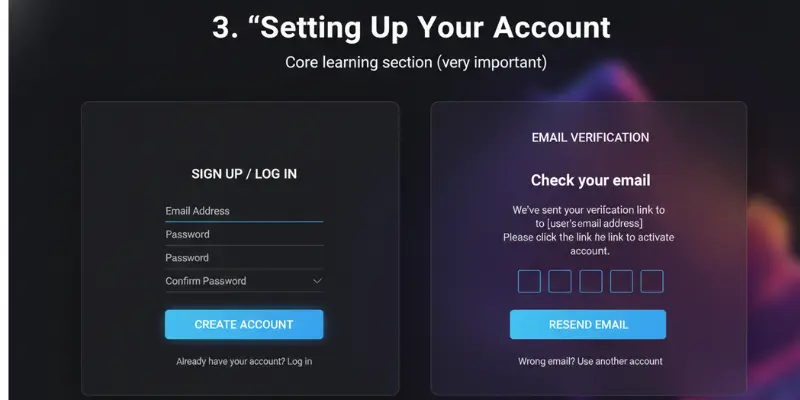
Setting Up Your Account
Go to the official website at motionmuse.ai. You will see a sign-up or get started button on the homepage. Click it, enter your email address and a password, and confirm your email when the verification arrives. Once confirmed, you are logged in and ready to generate.
New accounts receive a small batch of free credits automatically. These let you create your first videos without paying anything enough to properly test whether the tool fits your content style before you think about any paid plan.
It is also a good idea to make sure you are using the real MotionMuse AI website and not a lookalike domain. Many new users usually check MotionMuse AI legitimacy, payment safety, and billing details first before entering card information, especially when trying the platform for the first time.
Understanding the Dashboard
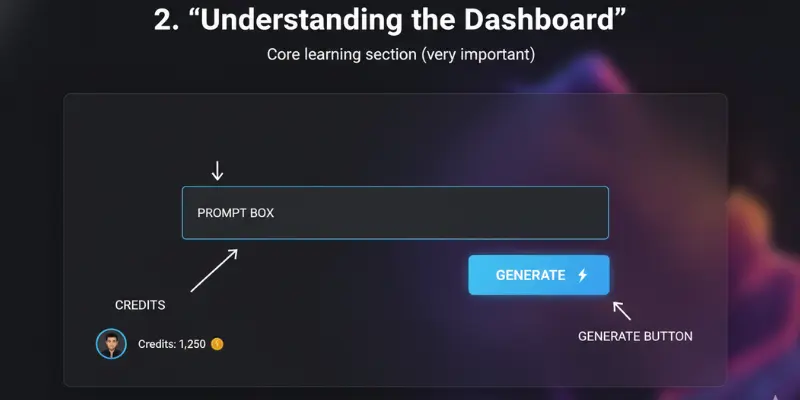
When you log in for the first time, the dashboard is intentionally simple. Here is what you will see when learning how to use MotionMuse AI:
- A text box where you enter your video prompt (the most important part)
- A generate button to start creating
- Your credit balance display
- A section showing previously generated videos
- Style or settings options for adjusting the output
Do not feel overwhelmed by any settings you do not recognize yet. For your first few videos, you only need to focus on the prompt box and the generate button. Everything else can be explored gradually as you get comfortable with how to use MotionMuse AI.
Step 1 — Writing Your First Prompt
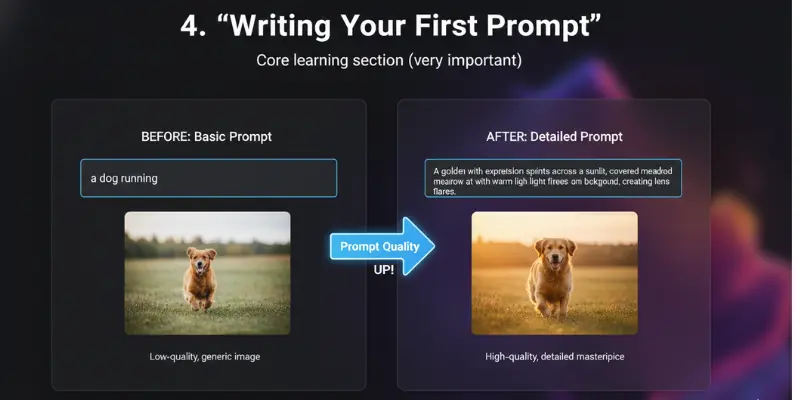
Your prompt is the written description you give the AI. It tells the tool what you want to see in your video. When you learn how to use MotionMuse AI effectively, you quickly discover that this is the single most important step in the entire process. The quality of your output depends almost entirely on how clearly and specifically you describe your idea.
Think of writing a prompt like giving directions to someone who has never been to a place before. Vague directions lead to wrong turns. Clear, specific directions get you exactly where you want to go.
What Makes a Good Prompt
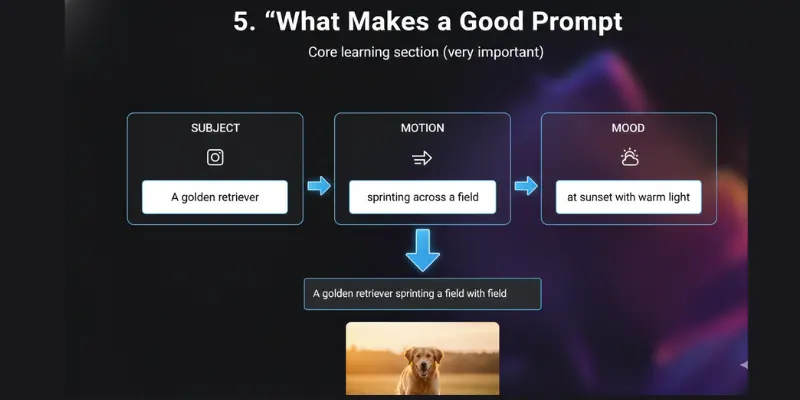
Strong MotionMuse AI prompts have three core elements:
A clear subject. What is the main focus of the video? A person, an object, a landscape, a scene? Be specific. “A busy city street at night” works better than “a city.”
An action or movement. MotionMuse creates motion, so tell it how things should move. “Rain falling slowly,” “neon lights flickering,” “camera moving forward through a forest” — these are all effective motion cues.
A mood or style. Words like “cinematic,” “warm,” “dark,” “dreamy,” or “energetic” help the AI match the visual tone to your content. This is optional but consistently improves results.
Here is a simple formula to follow when learning how to use motionmuse ai:
[Subject] + [action or movement] + [mood or style]
Examples using this formula:
- “A glowing neon city street with rain falling at night, cinematic mood”
- “Golden wheat field with wind moving slowly through it, warm sunset light”
- “Close-up of coffee being poured into a white cup, slow motion, warm tones”
- “Abstract colorful waves flowing gently, dreamy and soft”
What Makes a Bad Prompt
Too vague: “A cool video” tells the AI nothing meaningful. You will get a random result that probably does not match what you had in mind.
Too many elements at once: “A futuristic city with flying cars, a crowd of people, neon signs, rain, and a spaceship landing in the background” overloads the AI. Results from overly complex prompts tend to feel messy and inconsistent.
Contradictory instructions: “Bright and dark at the same time” confuses the output. Keep all instructions consistent with each other.
Very abstract ideas: “The feeling of loneliness” does not translate directly into visual motion. Instead, express the same mood through something visual: “An empty park bench on a quiet autumn evening, still and peaceful.”
If you need more prompt ideas, the MotionMuse AI prompt examples include different content styles and niches with ready-to-use templates you can easily adjust for your own videos.
Step 2 — Choosing a Motion Style
After writing your prompt, MotionMuse typically gives you style options to choose from. These might be labeled as presets, styles, or motion types depending on the version you are using. Understanding this step is key to learning how to use MotionMuse AI well.
Realistic vs Animated Styles
Realistic styles aim for footage that looks like it was filmed in the real world. Colors are natural, motion follows real-world physics, and the overall feel is grounded and authentic. These work well for lifestyle content, nature videos, food clips, and anything where you want the video to feel genuine.
Animated or stylized styles create a more artistic, illustrated, or motion-graphic look. The visuals are clearly AI-generated but in an intentional, creative way. These work well for title screens, abstract background loops, and any creative project where artistry matters more than realism.
Which Style Works Best for Different Platforms
For TikTok and Instagram Reels, both styles can work depending on your niche:
- Lifestyle, beauty, food, or travel content: Realistic styles tend to connect more naturally with audiences
- Music content, abstract aesthetics, art pages: Animated or stylized styles look intentional and fit these niches well
- Brand and business content: Realistic or semi-realistic styles typically look more professional
If you are unsure where to start when learning how to use MotionMuse AI, try the same prompt in two different styles and compare. Use one credit for each test to see which output fits your content better.
Step 3 — Generating Your Video
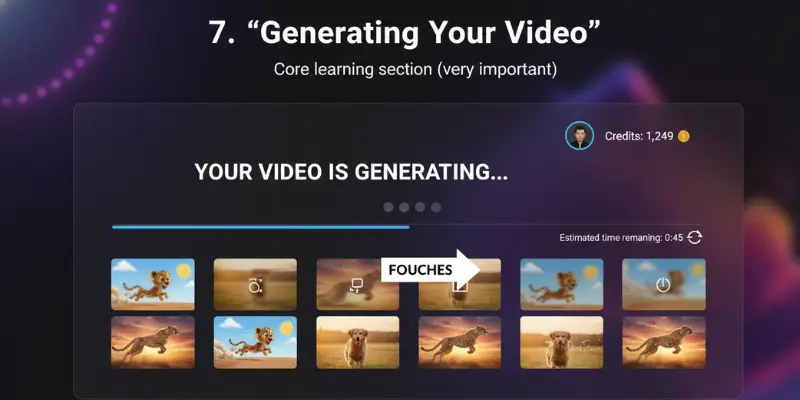
Once you have your prompt and choose a style, click the generate button. MotionMuse processes your request on its servers. This usually takes between 15 seconds and 2 minutes, depending on current server load. Learning how to use MotionMuse AI well means building patience into your workflow during this step.
What to Look for in the Preview
When your video appears in the preview area, it will play on loop so you can evaluate it. Watch it carefully before deciding whether to download or regenerate. Look for:
- Does the main subject match what you described?
- Does the motion look the way you imagined?
- Is the overall mood and tone close to what you wanted?
- Are there obvious problems like blurring or strange visual artifacts?
If the video looks good, download it immediately. If it does not, you have the option to regenerate.
How to Regenerate Without Wasting Credits
If the result is not right, do not just hit generate again with the same prompt. Every generation costs credits — including regenerations. Before regenerating, take a moment to improve the prompt first.
Ask yourself what specifically was wrong, then adjust only that part:
- Too dark: add “bright” or “well-lit” to your prompt
- Motion too fast: add “slow motion” or “slow and gentle movement”
- Wrong subject: be more specific about what it looks like
- Too cluttered: simplify to one or two main elements
Making small, targeted changes before regenerating is much more effective than rewriting the entire prompt from scratch. It also saves credits because you reach the result you want in fewer attempts. This is one of the most important lessons in understanding how to use MotionMuse AI efficiently.
Step 4 — Downloading and Using Your Video
When you are happy with a result, download it right away. Do not leave the page before downloading you may lose access to that specific generation.
Export Settings
Depending on your plan, you may have options for resolution and format. Higher resolution uses more credits or requires a higher plan tier. For most social media use, standard resolution is perfectly acceptable. Only choose higher resolution if the platform you are posting to specifically rewards it.
The standard export format is typically MP4, which works on all major platforms TikTok, Instagram, YouTube, and X (formerly Twitter).
Where MotionMuse Videos Work Best
MotionMuse AI videos are 4 to 6 seconds long, which makes them ideal for:
- Instagram Reels: Use as a standalone creative post, an opening visual, or a looping background behind text
- TikTok: Use as a visual hook in the first 2 seconds of a longer video, or as a standalone aesthetic clip
- YouTube Shorts: Works as a transition, intro, or visual accent combine with screen recording or talking-head footage
- Stories: Works in Instagram and Facebook Stories as an eye-catching, looping visual
- Background loops: Use as a moving background behind text-based content
Tips for Better Results Every Time
These tips are based on how the AI actually processes your input when you learn how to use MotionMuse AI effectively.
Keep prompts between 10 and 20 words. Short enough to stay focused, long enough to give real direction. Under 5 words is too vague. Over 30 words introduce competing elements that confuse the output.
Use specific visual language. Words that describe exactly what something looks like work far better than abstract concepts. “Soft pink petals falling in morning light” gives the AI much more to work with than “something beautiful and calm.”
Add a lighting description. Lighting changes the entire emotional feel of a video. “Golden hour light,” “neon glow,” “soft overcast,” “bright studio light” — these consistently improve output quality when you know how to use MotionMuse AI well.
Reference a camera style when it matters. Words like “aerial view,” “close-up,” “wide angle,” or “slow camera pan” give the AI a visual frame for the shot, which significantly improves results.
Test at least 3 different prompts before judging the tool. AI video generation has natural variation. Some prompts produce excellent results; others produce weaker ones. A fair evaluation requires several different tests.
Common Beginner Mistakes and How to Avoid Them
These are the patterns that most commonly lead to poor results, wasted credits, and unnecessary frustration when learning how to use MotionMuse ai.
Regenerating without improving the prompt first. Many beginners hit regenerate the moment they see a result they do not love, without stopping to adjust the prompt. This burns credits without improving the outcome. Always change something in the prompt before regenerating.
Ignoring the style selection. Some users skip style choices and stick with the default for every video. Taking 30 seconds to choose a style that actually matches your content makes a noticeable difference.
Not downloading immediately. Some users generate a video, close the tab, and come back later expecting to find it. Always download right after generating. Credits are spent the moment you generate failing to download means wasting that credit entirely.
Using free credits to explore randomly. Testing is valuable, but testing without a goal means burning credits without learning anything useful. Even during exploration, have a real content idea for each generation.
Uploading complex image references. If the tool allows image uploads as a starting point, simple and clear reference images produce better motion outputs than busy, complex ones.
What to Do When Credits Run Out
This will happen, especially on the free plan. Here is the best path forward depending on your situation.
If you want to keep using MotionMuse, the simplest option is upgrading to a paid plan. Before doing that, it helps to test enough videos first so you know the platform matches your workflow and content style. Since MotionMuse AI pricing can vary depending on credits and usage limits, many users compare the available plans carefully before deciding which one fits their budget best.
If you want to try other tools for free: Several strong alternatives offer daily free credits that reset every 24 hours. You can create a small number of videos every single day without paying. The best free MotionMuse AI alternatives list these tools with their daily limits, watermark policies, and what they work best for.
If you want unlimited free video creation: The only truly unlimited free option currently available is Stable Diffusion, an open-source tool that runs on your own computer. It requires technical setup but has no credit limits, no watermarks, and no monthly fees. For creators not comfortable with technical setup, the free alternatives resource is a much easier starting point.
Conclusion
Understanding how to use MotionMuse AI comes down to four simple steps: write a clear prompt, choose a style, generate, and download. The whole process takes under two minutes once you get comfortable with it.
The biggest factor in your results is the quality of your prompt. Spend more time on your prompt than anything else that is where the difference between a good result and a disappointing one is decided.
Start with simple, specific, and visual ideas. Download everything you generate. Use your free credits to test what types of prompts work best for your content niche. Once you find what works, you will be able to decide whether upgrading to a paid plan makes sense for you.
If you are still unsure whether MotionMuse AI is the right choice, the MotionMuse AI review can help you understand its features, pros, and limitations before you decide.
Faqs
Most videos are generated in 30 seconds to 2 minutes. During busy periods it can take slightly longer. Paid plan users typically get priority processing, which means shorter wait times.
Yes, since it is browser-based you can access it from a mobile browser. However, the experience works better on a laptop or desktop because the interface is designed for larger screens.
Start with something simple, visual, and specific. Try: “A peaceful beach at sunset with gentle waves, warm golden light.” This prompt has a clear subject, motion, lighting, and mood all the ingredients for a strong result on your first try.
Check the official terms of service at motionmuse.ai for the current policy. Most AI video tools allow you to use generated content for personal and commercial purposes without requiring attribution, but always verify directly before publishing commercial content.
The official platform states that user content is processed securely and not shared with third parties. For anyone with specific privacy concerns, reading the platform’s privacy policy directly is the best approach. The main safety signals were reviewed in the MotionMuse AI legitimacy and safety analysis.






- Be Respectful
- Stay Relevant
- Stay Positive
- True Feedback
- Encourage Discussion
- Avoid Spamming
- No Fake News
- Don't Copy-Paste
- No Personal Attacks
- Be Respectful
- Stay Relevant
- Stay Positive
- True Feedback
- Encourage Discussion
- Avoid Spamming
- No Fake News
- Don't Copy-Paste
- No Personal Attacks
