How to Fix Blurry AI Generated Videos in 2026 (Step-by-Step)
Published: 17 Oct 2026
Your AI-generated video may look clear in the preview, but after downloading it, the skin looks unnatural, the background looks blurry, and the whole video looks less sharp on a big screen.
To fix blurry AI generated videos, don’t start with an upscaler. Making a blurry video bigger won’t necessarily make it clearer. First, find out why the video looks blurry, then fix the problem step by step.
In this guide, you’ll learn how to identify the type of blur, which fixes to try first, which tools are worth paying for, and when it’s better to generate the video again.
To fix blurry AI generated videos, identify the blur type first. Then work in this order: generate at the highest resolution, tighten the prompt, slow the motion, settle flicker and choppy frames, upscale with a tool that rebuilds detail, add light sharpening, and export at a high bitrate. Upscaling alone only helps when low resolution is the cause.
Why Is My AI Video Blurry? Four Different Problems
“Blurry” covers four separate problems. Each needs a different fix.
| Blur type | What you see | Best fix |
| Soft rendering | Soft even when paused. Waxy skin, mushy fabric, no hair strands | A detail-rebuilding enhancer at moderate strength |
| Low resolution | Looks okay, small, soft on a big screen. File is 720p or 1080p | Upscaling |
| Motion smear | Sharp when paused, smeared when things move | Slower motion, a re-roll, or some enhancement |
| Compression blur | Fine in your editor, soft after upload | Better export settings and a cleaner master file |
The 30-Second Pause Test
- Pause on a textured area, like a cheek, a sweater, or leaves. If it’s soft while paused, you have soft rendering or low resolution.
- Check the file’s pixel size. If it’s 720p or 1080p and you’re watching on a 4K screen, resolution is part of the problem.
- Compare a paused frame to a moving moment. Sharp still, mushy motion means motion smear.
- Compare your editor’s version to the uploaded version. Fine before, soft after, means compression.
Most clips have a mix, but one cause usually dominates. Start there.
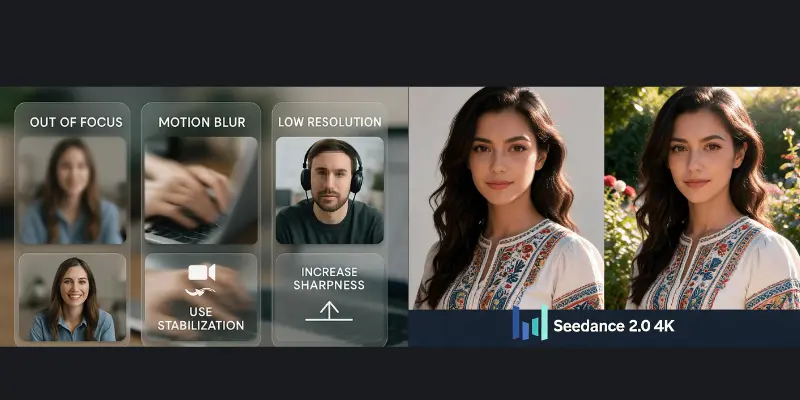
Match the Symptom to the Fix
Not everything that looks “blurry” is blurry. Use this table to avoid fixing the wrong problem.
| What you notice | Real cause | What to do |
| Waxy skin, no hair strands, mushy fabric | Soft rendering | Detail-rebuilding enhancer, moderate strength |
| Textures shimmer or pulse between frames | Flicker | Deflicker pass before anything else |
| Movement jumps even though frames look sharp | Choppy frame rate | Frame interpolation |
| Blocky or muddy only after upload | Compression | Better export, cleaner master |
| Arms or objects smear during fast action | Motion limit | Regenerate with calmer movement |
| Garbled or warped text | Generation limit | Regenerate, or add text in your editor |
| Face looks distorted, not just soft | Structure problem | Regenerate. Sharpening won’t help. |
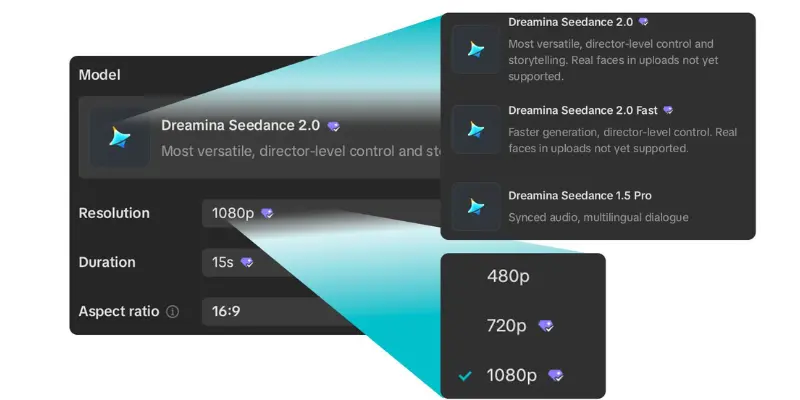
Step 1: Generate at the Highest Resolution Your Plan Allows
Many AI video tools default to lower resolution or a fast preview mode to save processing time. Your source sets the ceiling for any attempt to fix blurry AI generated videos, because a filter can’t add detail the model never generated.
- Use draft settings to test prompts, then render your keeper at the highest setting.
- Pick your final aspect ratio before you generate, so the tool doesn’t crop or stretch later.
- Check whether “fast” or “preview” modes are on for final renders.
If your plan caps resolution, Runway Gen-4 review is worth a look before you pay for another month. Check your tool’s own pricing too, since limits change often.
Step 2: Tighten the Prompt
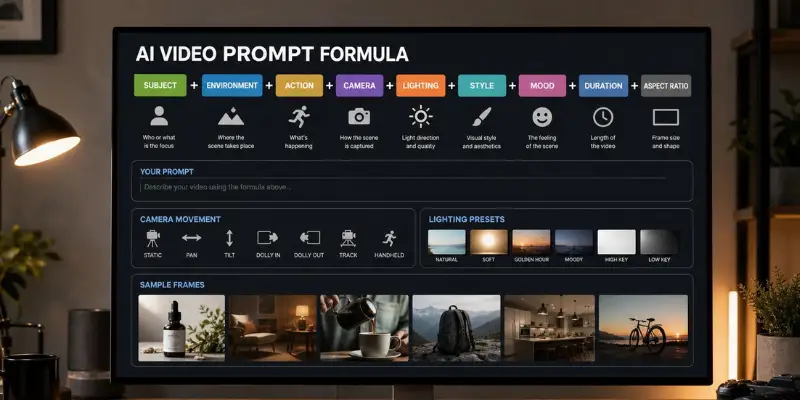
A clear prompt is the cheapest way to fix blurry AI generated videos, because it works before the clip exists.
Words worth testing: “sharp focus,” “deep focus,” “detailed textures,” “high-definition footage.”
Words that can add blur: “bokeh,” “shallow depth of field,” “dreamy,” “soft light.” Some creators use film terms like these for a cinematic look. That’s fine when you want it, but you’re asking the model to blur things on purpose.
Two more rules:
- Don’t contradict yourself. “Soft lighting” plus “harsh shadows” gives the model two goals, and the result often looks muddy.
- Keep it short. A long prompt packed with ideas doesn’t mean a sharper clip. Build it in this order: subject, setting, camera, lighting.
Starter prompts to adapt:
- Portrait: “Close-up of a man talking to the camera, sharp focus on the face, detailed skin texture, natural window light, steady camera.”
- Landscape: “Wide shot of a mountain lake at sunrise, deep focus, detailed foliage and water texture, slow gentle camera pan.”
- Product: “A watch on a dark table, sharp focus, detailed metal texture, slow orbit camera.”
No keyword guarantees sharpness, and every model responds differently. Run the same prompt in a second tool, such as the one in Hailuo AI review, to see whether the softness comes from your wording or from the model.
Step 3: Slow the Motion
Fast movement is the hardest part when you try to fix blurry AI generated videos after the fact, because the detail was never rendered in those frames.
- Lower the motion setting and raise it in small steps. Every tool scales motion differently, so don’t copy someone else’s slider number.
- Use camera controls (pan, tilt, zoom) instead of strong subject movement.
- Start from a sharp still image and use image-to-video if your tool offers it. You control more of what moves.
- Keep clips short. Longer clips give the model more room to drift and soften.
If motion smear is heavy, a re-roll with calmer movement often beats any repair.
Step 4: Sort Out Flicker and Choppy Motion First
Before you fix blurry AI generated videos with an upscaler, settle the problems underneath. Sharpening a flickering or stuttering clip gives you a sharp flickering clip.
- Flicker: textures or lighting pulse between frames. Use a deflicker pass in your editor or enhancer.
- Choppy motion: frames are clean but movement jumps. Frame interpolation adds in-between frames. Tools like Topaz’s frame interpolation and the optical flow options in video editors can do this.
Go gently. Interpolation can create ghosting or odd edges on fast movement. Compare before and after, and if it looks worse, go back to the original frame rate.
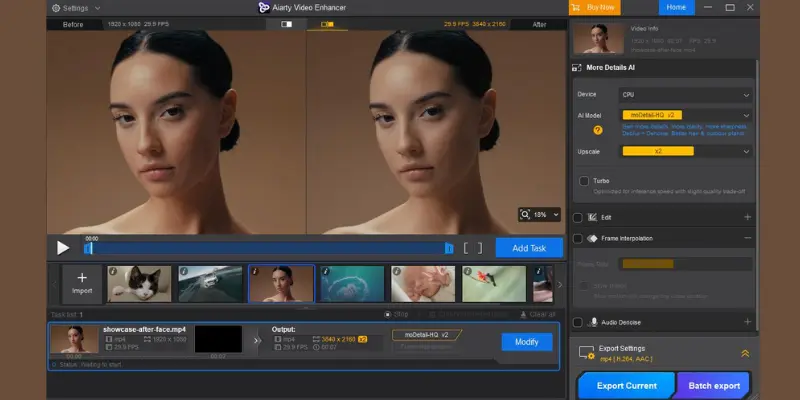
Step 5: Upscale With a Tool That Rebuilds Detail
Upscaling is the step most people try first to fix blurry AI generated videos, and it works best after the earlier steps. It matters most when your generator caps resolution, and anyone working with an unrestricted AI video generator will usually still rely on a post-process upscale to get past that limit.
The difference between tools matters. A plain resize stretches existing pixels, so soft stays soft, only larger. An AI video upscaler (or AI video enhancer) predicts and adds believable texture instead. It’s inventing plausible detail, not recovering real information, so pushing it too hard gives an etched, plastic look.
| Tool | Type | Good for | Watch out for |
| Topaz Video (desktop) and Topaz’s cloud video upscaler | Paid | Most control, multiple models, AI-generated clips up to 4K | Desktop processing is heavy on your GPU. Models and plans change, so check the current Topaz pricing. |
| Kapwing’s AI upscaler | Browser, free to start | Quick social clips, upscale plus denoise in one place | According to Kapwing’s FAQ, free exports carry a watermark and 1080p/4K export needs a paid plan. |
| DaVinci Resolve | Free and Studio versions | Editors who already cut in Resolve | Some AI features are Studio-only, so confirm what you need first. |
Topaz isn’t the only route, and many creators with a tighter budget or a weaker GPU end up choosing one of the Topaz Video AI alternatives for a lighter, cheaper workflow.
Before you process a full clip:
- Test a 5 to 10 second sample of your worst shot first. Picking the wrong model on a long clip wastes hours.
- Use moderate strength. If skin looks waxy or edges look etched, ease it back.
- Choose a face-aware model for portraits and a general model for landscapes.
- Don’t “fix” blur you wanted. If the background bokeh is intentional, judge the subject, not the background.
Step 6: Add Light Sharpening Last
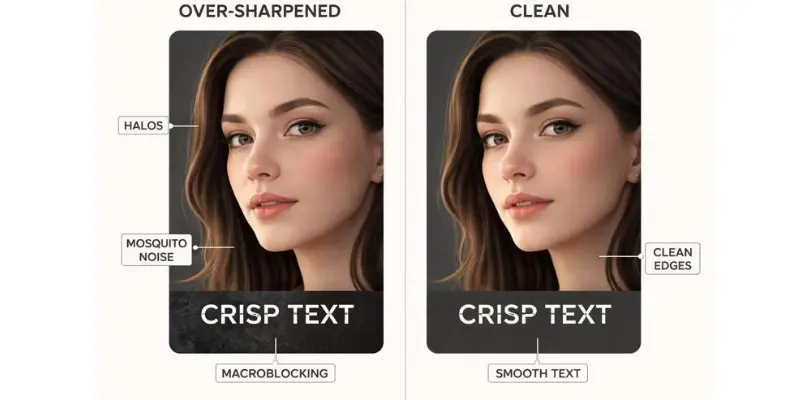
Light sharpening is the final touch when you fix blurry AI generated videos. A good upscaler already adds detail, so you may not need much. If the clip still looks flat, apply a small amount of Unsharp Mask in your editor.
- Zoom to 100% to 200% on a high-contrast edge, like hair against a bright background.
- If you see bright outlines (halos), the setting is too strong.
- Sharpen the subject, not the whole frame, when the background is meant to be soft.
Sharpening polishes a decent clip. It can’t rescue a weak one.
Step 7: Export So the Platform Doesn’t Re-Blur It
Export settings decide whether your work to fix blurry AI generated videos survives upload. YouTube, Instagram, and TikTok all compress your video again, so give them a clean, high-quality file to start with.
- Use a high-quality export preset, not a “small file” one.
- Export at your final delivery size. Don’t export small and enlarge later.
- Use H.265 (HEVC) for efficient delivery, or ProRes if you’ll keep editing.
- Check the platform’s own help center for current recommended upload settings, since numbers change.
- Upload a short private test and watch it on your phone before you publish the full video.
The Right Order at a Glance
Here’s the full order to fix blurry AI generated videos:
- Run the pause test and name the blur type.
- Generate at the highest resolution you can.
- Tighten the prompt and slow the motion.
- Fix flicker and choppy motion.
- Upscale with a detail-rebuilding tool.
- Sharpen lightly, only if needed.
- Export high, then test-upload.
Each step works on the result of the one before it, so skipping ahead usually costs you time.
RElATED POSTS
AI Video Generator Reviews 2026: 11 Tools Ranked and Rated
Best AI Video Generator in 2026: A Clear Guide for Beginners and Content Creators
Repair or Regenerate?
Sometimes the smartest way to fix blurry AI generated videos is not to repair them at all.
| Situation | Better move |
| Soft but the shapes are clear | Repair with an upscaler |
| Low resolution but well composed | Repair with an upscaler |
| Looked fine before upload | Fix the export, not the clip |
| Heavy smear on fast motion | Regenerate with calmer movement |
| Warped faces or garbled text | Regenerate. Sharpening won’t fix these. |
| The shot is cheap to re-roll | Regenerate at a higher setting |
If one model keeps giving you soft results on your type of shot, the real fix may be a different generator, and our AI video generator reviews can help you pick one.
Is It Worth Paying to Fix Blurry AI Generated Videos?
This is my evaluation based on how these tools are priced and limited, not a hands-on test.
- Occasional use, a few clips: Start free. Kapwing’s free tier and the free version of DaVinci Resolve cover basic needs, though Kapwing’s free exports are watermarked.
- Regular creators or client work: A paid upscaler usually pays for itself in time saved, especially if you finish several clips a month.
- Always check first: Regenerating at a higher setting is sometimes cheaper than upscaling a weak clip. Compare the credit cost of a re-roll with the cost of the enhancer before you commit.
Prices and plans change often, so check each vendor’s site before you buy.
Common Mistakes When You Fix Blurry AI Generated Videos
- Upscaling a soft clip without diagnosing it, which gives you a larger soft clip
- Maxing out enhancement sliders until faces look like wax
- Sharpening before fixing flicker or choppy motion
- Using “bokeh” or “dreamy” in prompts, then wondering why the frame is soft
- Exporting at a low bitrate and losing the detail you just rebuilt
- Expecting enhancement to fix garbled text or warped faces
- Skipping the 10-second test clip
Before You Publish: Quick Checklist
- Paused frames show real texture on skin, fabric, and leaves.
- No bright halos around high-contrast edges.
- No flicker or pulsing at normal playback speed.
- Skin tones match the original clip.
- A private test upload looks sharp on a phone.
Keep a short note of what worked (model, settings, strength). Next time you need to fix blurry AI generated videos, you’ll start from a proven setup instead of guessing.
Your Next Step: Fix One Clip Today
You don’t need a new tool, a bigger plan, or a perfect prompt to fix blurry AI generated videos. You need one test clip and about 20 minutes.
Try this right now:
- Pick your blurriest clip and run the 30-second pause test to name the blur type.
- Fix the cause in order: prompt, motion, flicker, upscale, light sharpening, export.
- Process only a 5 to 10 second sample first, then compare it to the original at normal speed.
- Upload a short private test and watch it on your phone before you publish.
If the sample looks better, run the full clip. If it doesn’t, the shot is probably too smeared or warped to save, so regenerate it instead of spending more time on repairs.
Still getting soft results from the same generator? Try a different option from AI video generator tools before you renew your plan.
Every clip you repair teaches you what works for your style of shots. Save your settings, and the next time you need to fix blurry AI generated videos, you’ll start from a proven setup. Pick one clip today and make your next export the sharpest one yet.
Frequently Asked Questions
Often, yes. Upscaling and light sharpening can rebuild believable detail. They can’t recover structure the model never created, so a clip that’s a pure smear is better regenerated.
Previews often show at lower resolution, and exports can be compressed hard. Check your resolution and bitrate settings, then test-upload privately.
Only when low resolution is the cause. For soft rendering, use an enhancer that rebuilds detail instead of a plain resize.
Partly. DaVinci Resolve’s free version and the free tiers of web editors can help with sharpening, denoising, and basic upscaling. Expect limits like watermarks or capped export quality, and slower or less precise results than paid tools.
No. A short, clear prompt works better than a long one with conflicting ideas.





- Be Respectful
- Stay Relevant
- Stay Positive
- True Feedback
- Encourage Discussion
- Avoid Spamming
- No Fake News
- Don't Copy-Paste
- No Personal Attacks
- Be Respectful
- Stay Relevant
- Stay Positive
- True Feedback
- Encourage Discussion
- Avoid Spamming
- No Fake News
- Don't Copy-Paste
- No Personal Attacks
